The workflow difference
With a web-based mockup studio like Shots.so, making one social-ready screenshot means: take the screenshot with another tool, save it, open the mockup site, upload, style, download. Six steps, two tools, one tab-juggle.
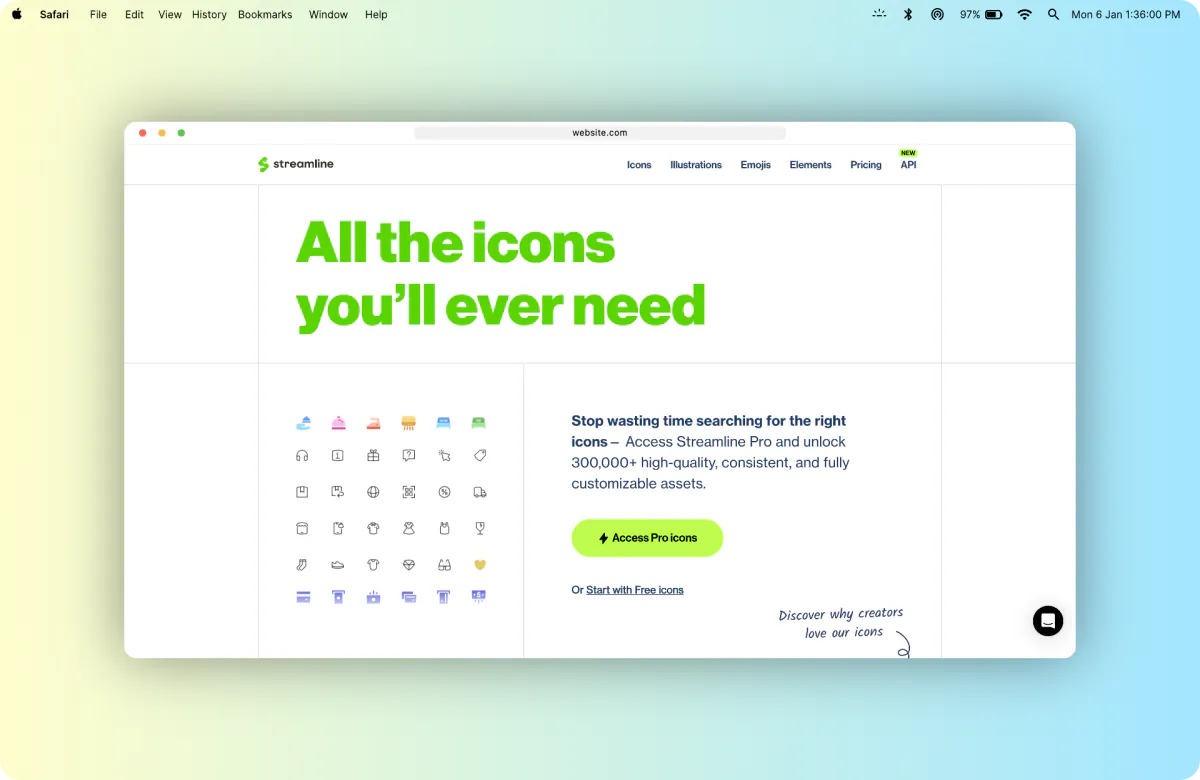
Screenshot Framer collapses that into: right-click → drag → done. The extension captures any region of any webpage and opens it already framed on a designer background, ready to annotate, redact and export.
| Capability | Shots.so | Screenshot Framer |
|---|---|---|
| Type | Web app (upload your image) | Chrome extension (captures for you) |
| Price | Free tier + paid plans | 100% free, no paid tier |
| Capture built in | No | Right-click area or full-viewport |
| Device / browser frames | Many device mockups | macOS Safari frame (light & dark), MacBook bar |
| Annotations & redaction | Limited | 10 annotation tools + draw-to-redact |
| Quote cards from text | No | Highlight text → typography quote card |
| Export | PNG and more | PNG, JPG, WebP, PDF, SVG — up to 8K, watermark-free |
| Privacy | Image uploaded to web app | 100% local, nothing uploaded |
When Shots.so is still the better pick
Honesty helps you choose faster: if you need photorealistic 3D device mockups (a tilted iPhone floating over a scene) for app-store pages or hero sections, a dedicated mockup studio like Shots.so is built for exactly that. Screenshot Framer optimizes for a different job — the everyday screenshot you're about to paste into a tweet, a doc, a blog post or a Slack thread, made presentable in under 30 seconds.
Why free-with-no-catch matters here
- No watermark to remove. Many beautifier tools watermark free exports; Screenshot Framer never does.
- No export caps. Make five screenshots or fifty — there's no monthly limit to hit mid-launch.
- No account. Install and use. Your screenshots stay on your machine — safe for anything containing customer data or API keys (and there's a redaction brush for extra safety).