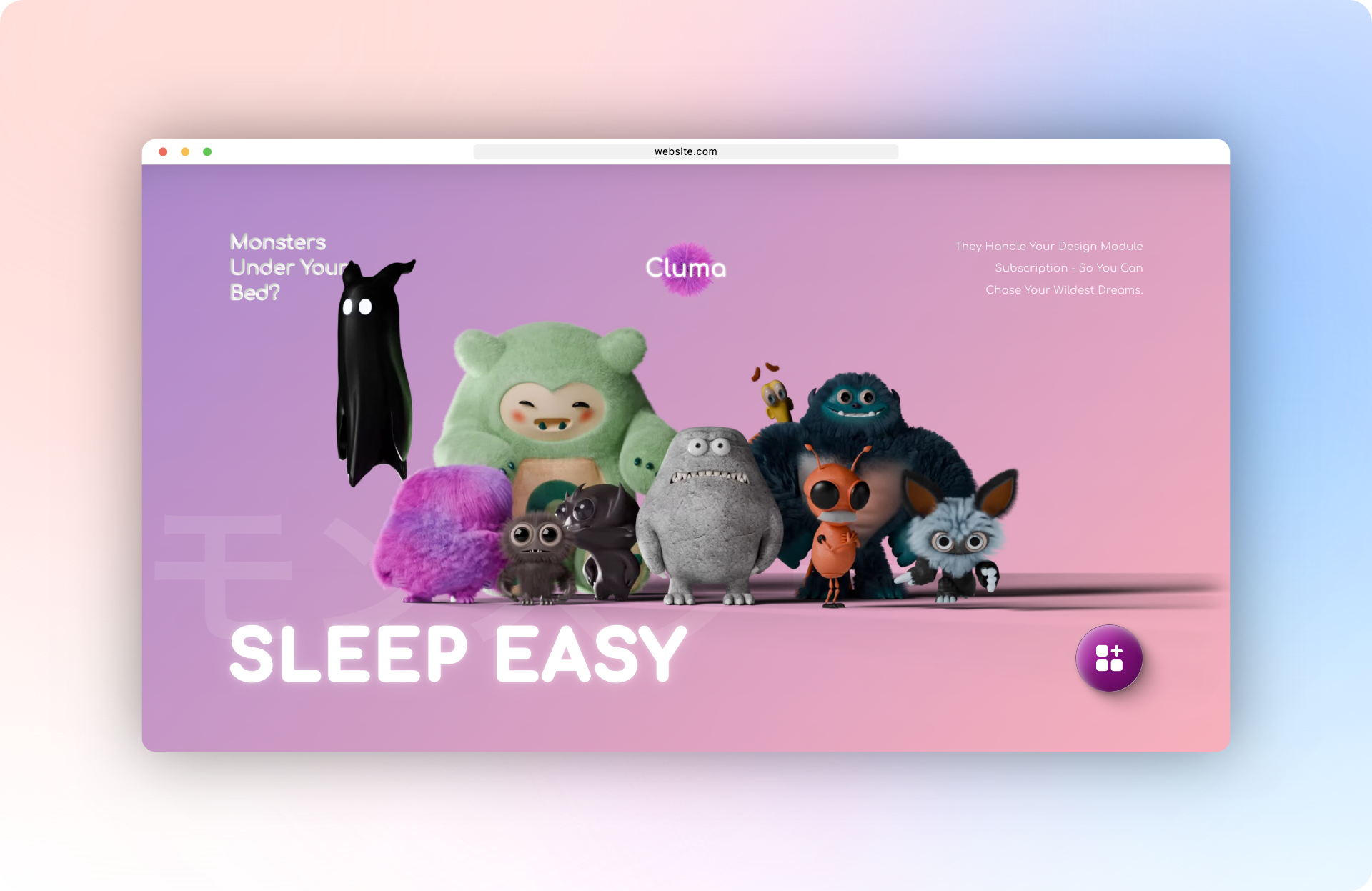
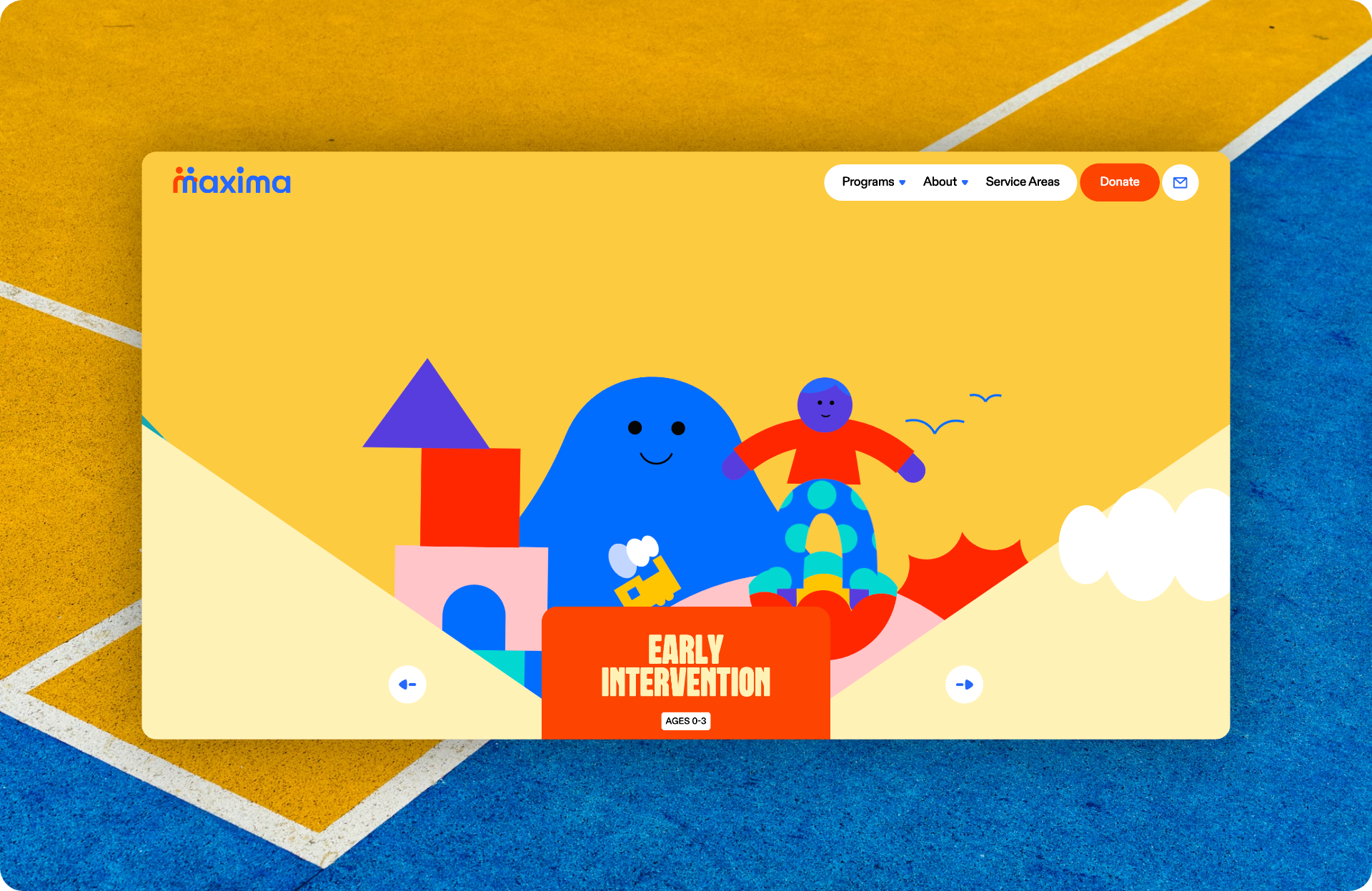
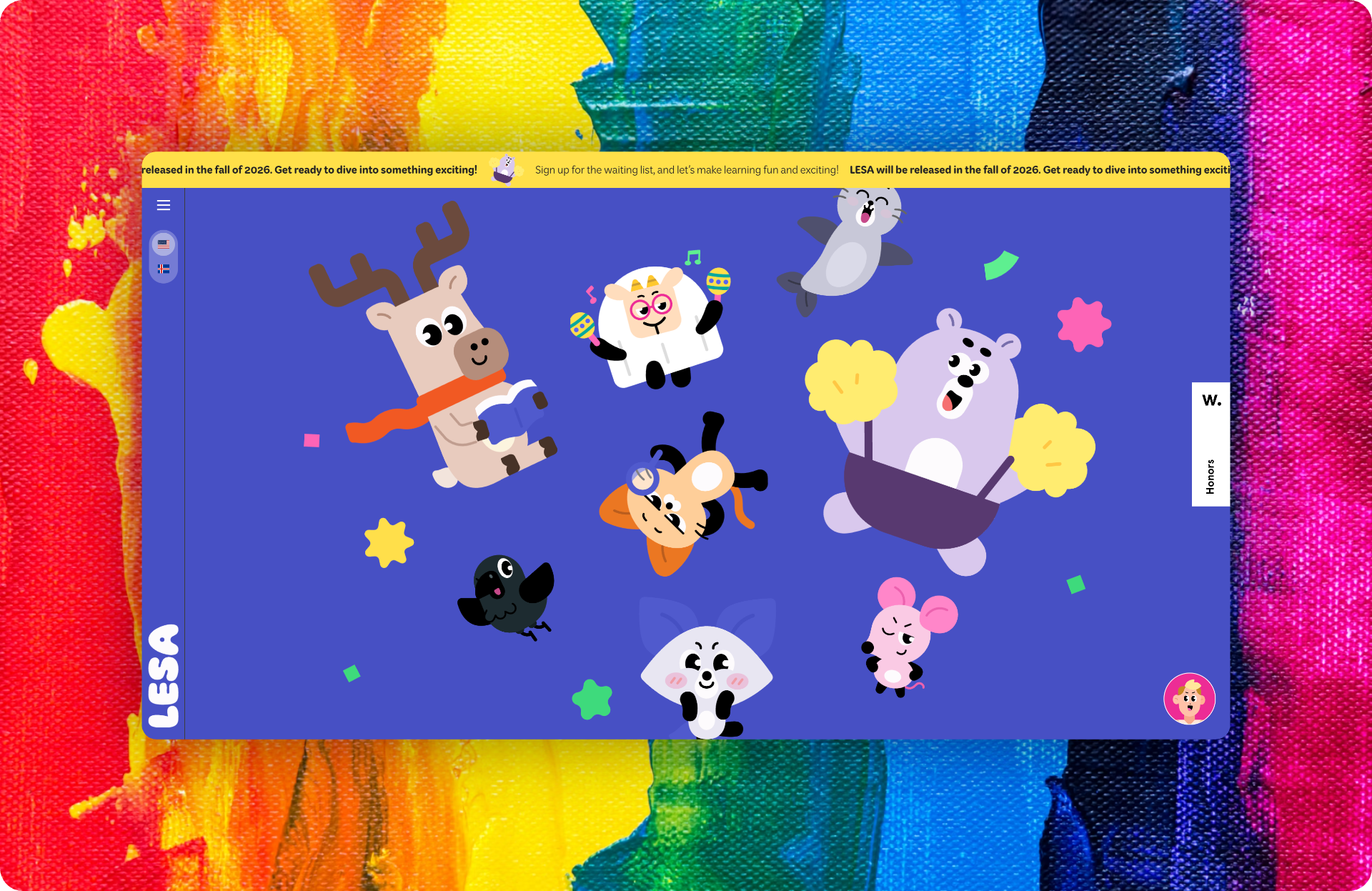
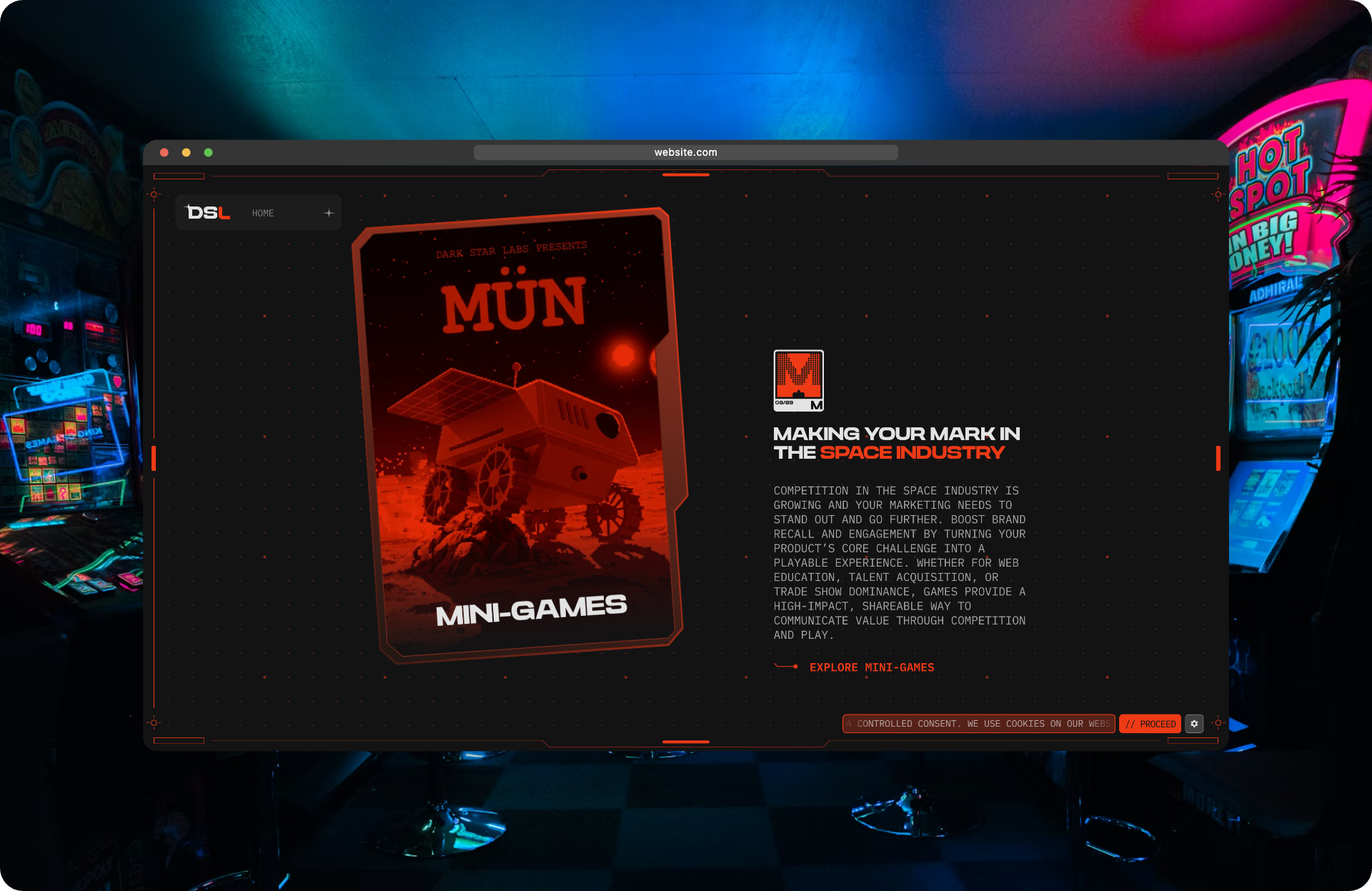
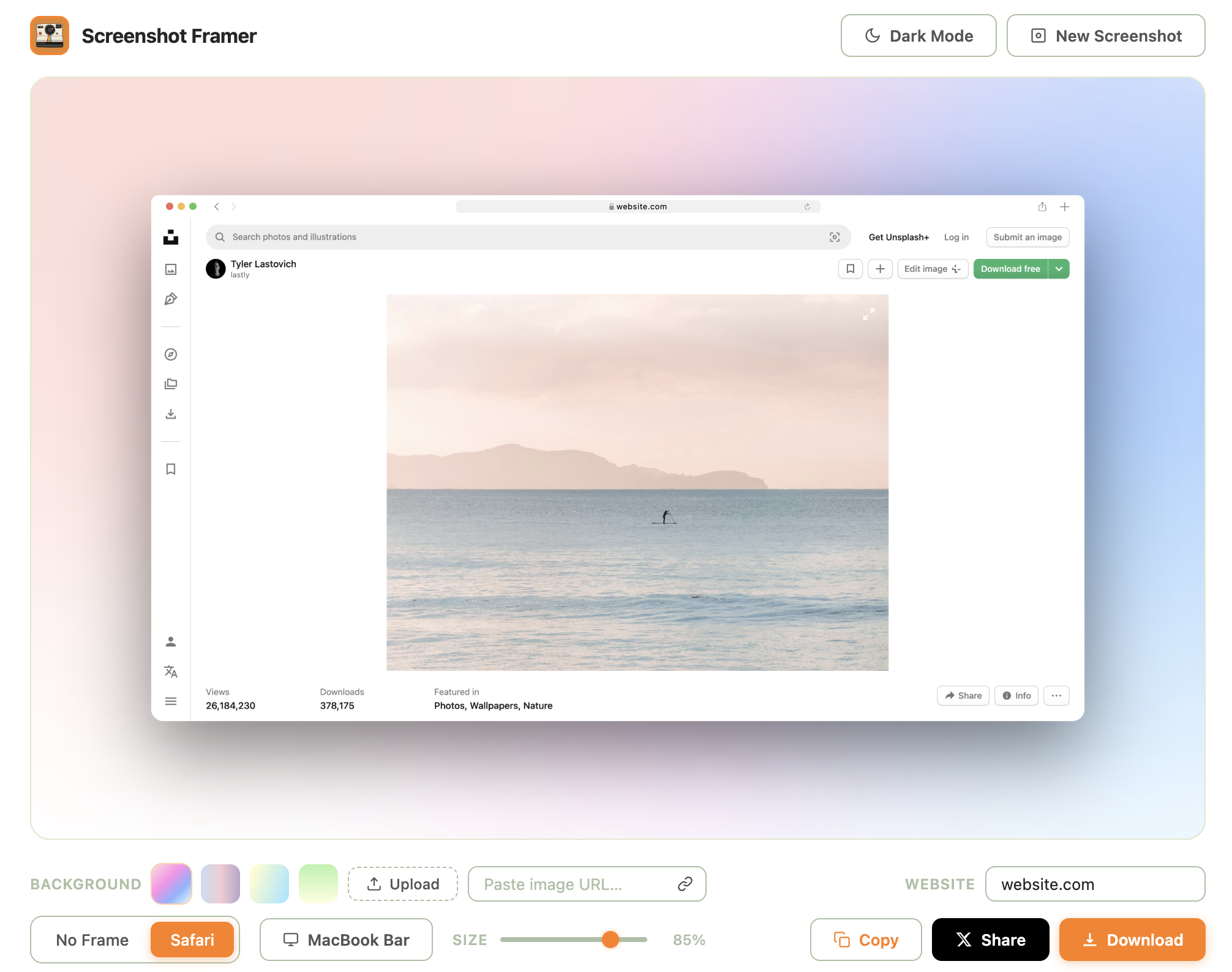
v1.5 Social frame gallery · full-viewport capture · 21 wallpapers · full-height inspector Free Chrome Extension · No Account Needed

Frame Any Screenshot.
Share It Beautifully.

Capture a precise area or the complete visible viewport, choose a macOS window or an original social layout, drag the outer canvas edges to fit your post, then annotate, redact and export up to 8K — all without leaving your browser.

Try it in your browser

Upload a screenshot. Get a beautiful frame.

Use this free screenshot frame maker right now: choose a background and layout, adjust the spacing, then download your preview. Your image stays on this device.

Live preview Ready for your screenshot
Your browser needs canvas support to display the interactive screenshot preview.

The complete image is fitted inside the frame—this preview never center-crops your screenshot.

Mini editor

Style your screenshot

1 · Screenshot
Nothing uploaded yet
2 · Background
3 · Frame
Medium

Your image is processed only in this browser tab. It is never uploaded or stored.

Want 21 wallpapers, six social layouts, annotations and 8K export? Get the free extension →

Two flows, one right-click

Capture any region of any page, or turn highlighted text into a typography quote card.

01 · Screenshot capture

Right-click → drag → framed result

Selection overlay → editor tab opens with your shot already framed, ready to tweak and ship.

02 · Quote framer New

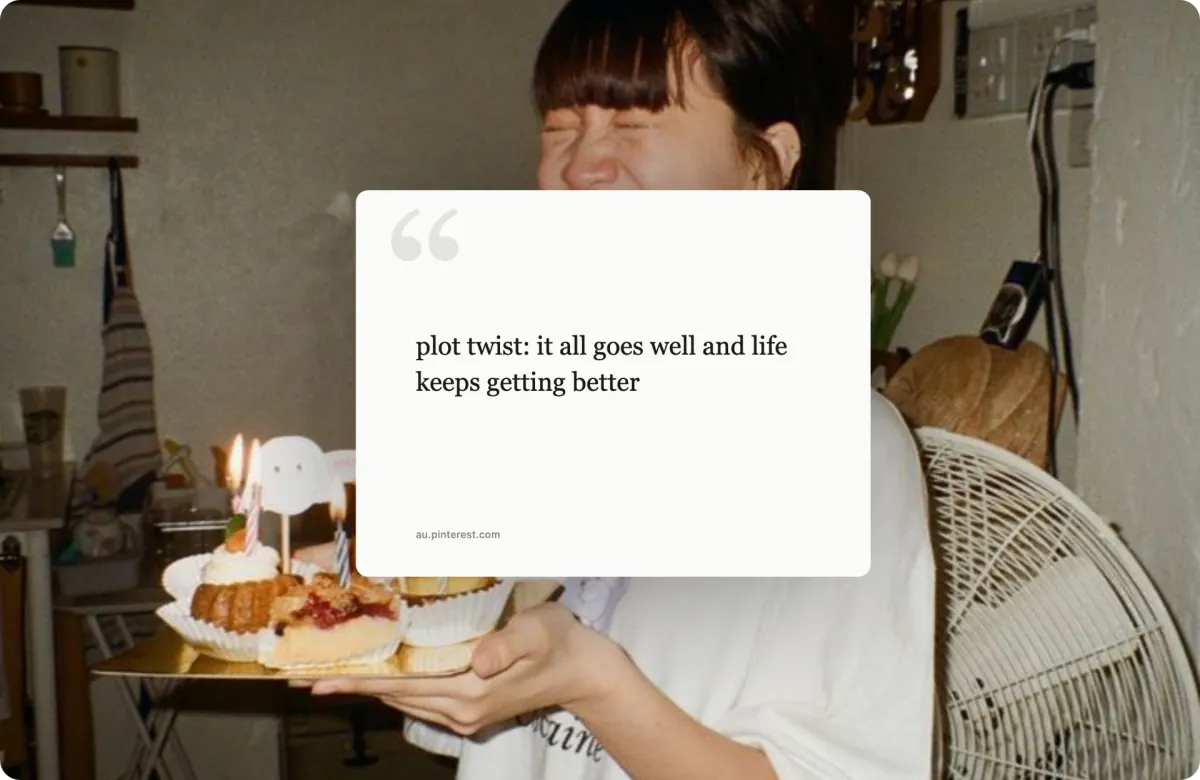
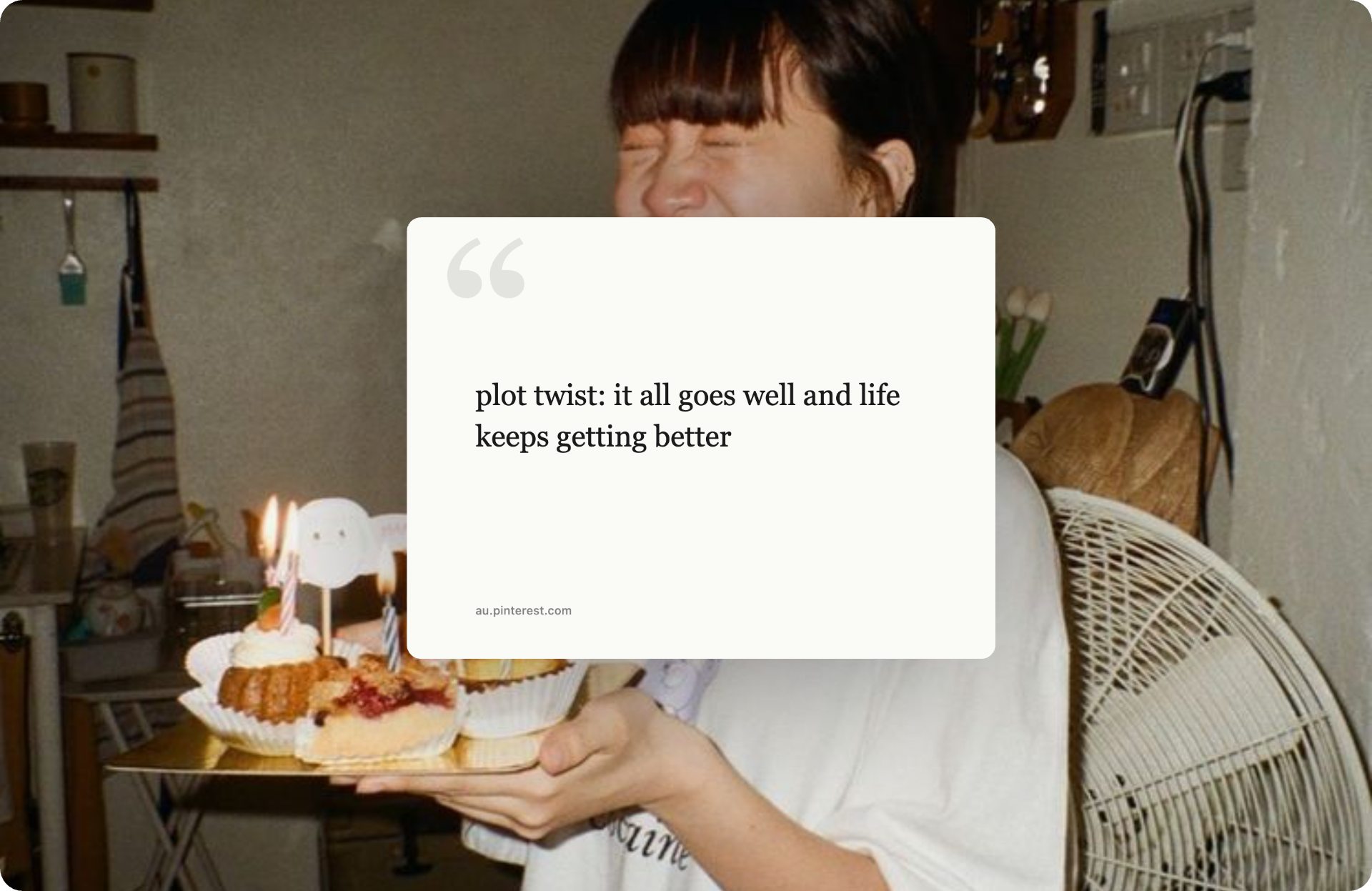
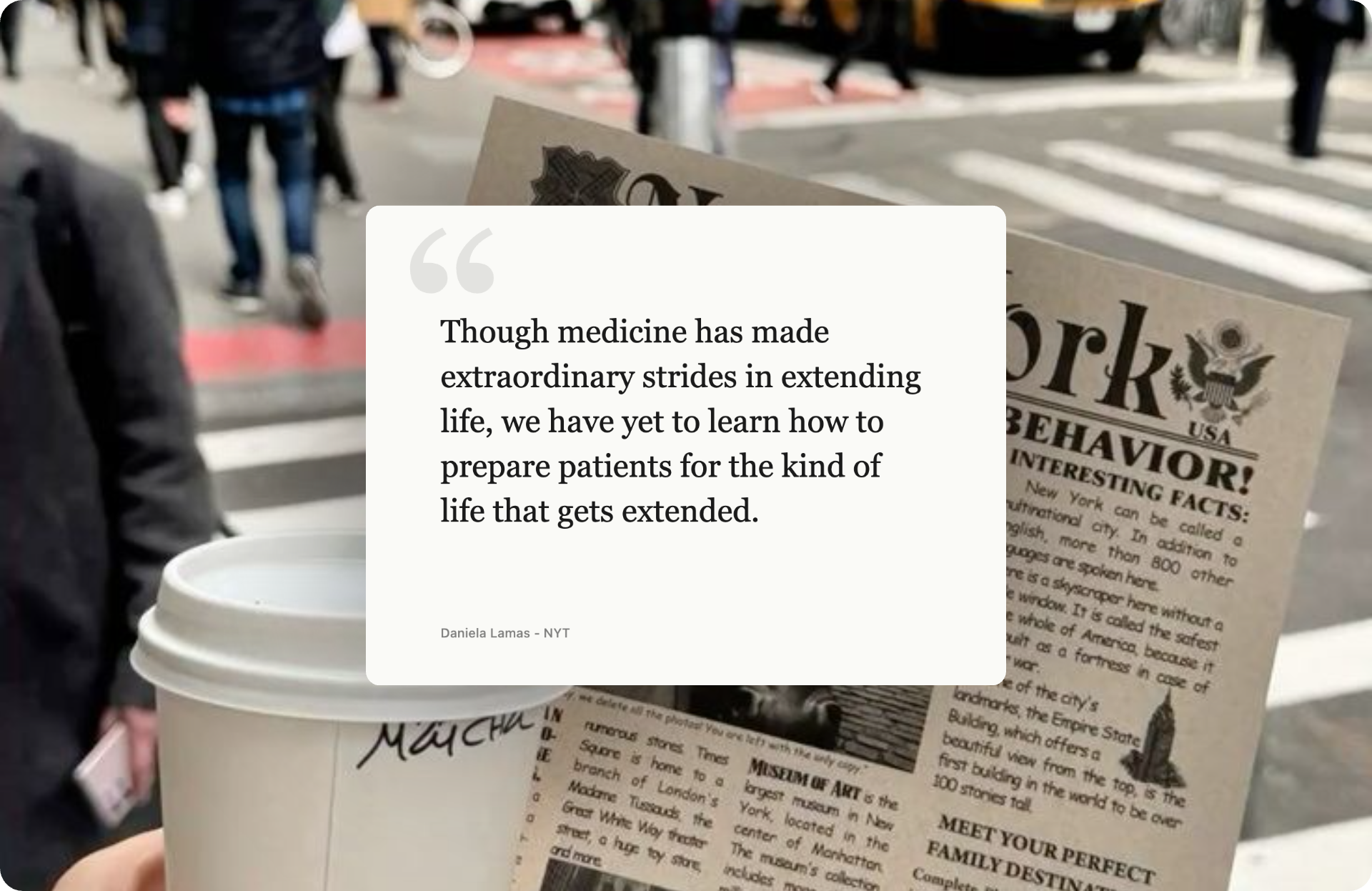
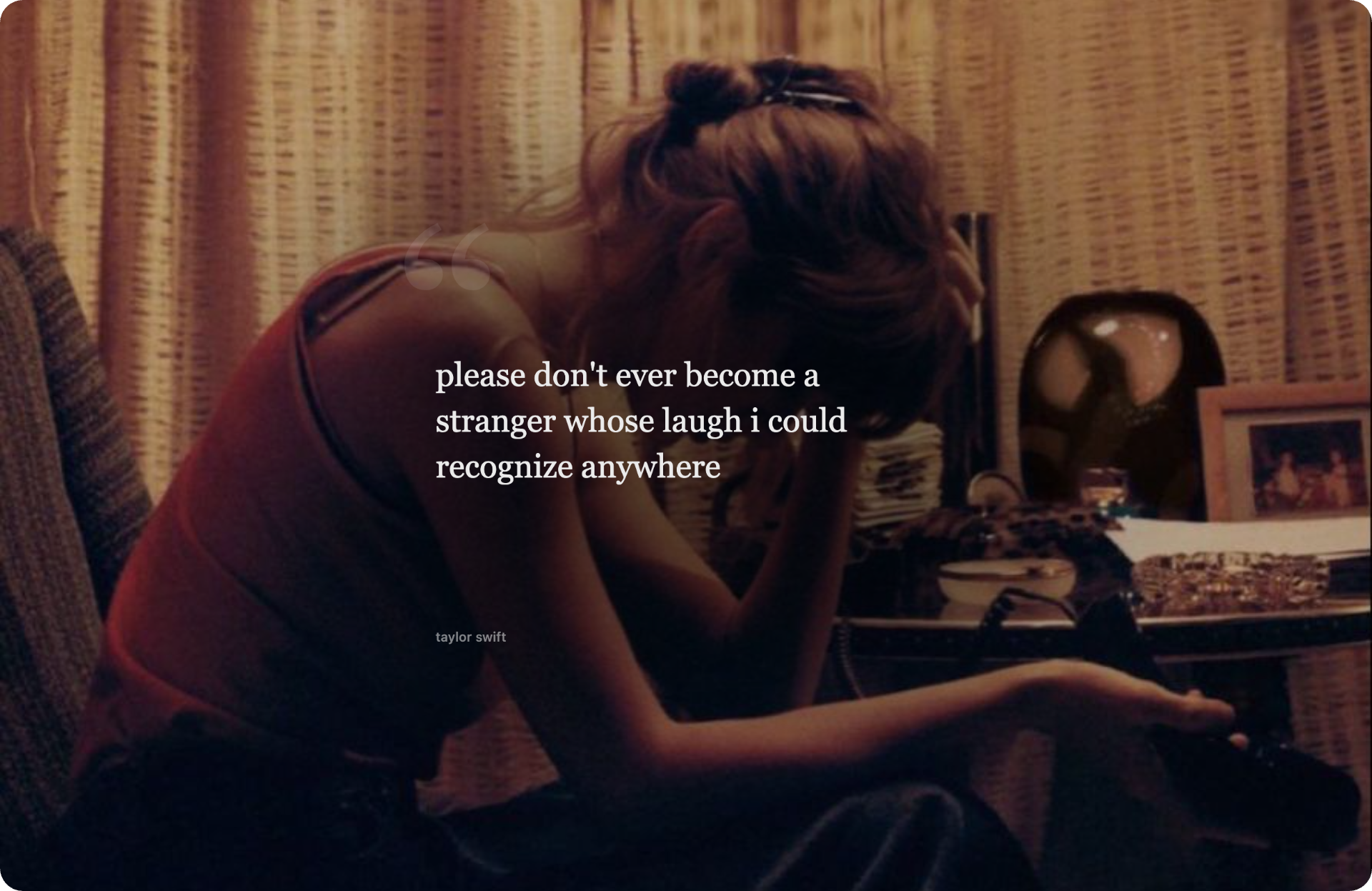
Highlight text → typography quote card

Pick from five fonts, drop in a backdrop, and the source URL is baked into the caption for you.

New editor workflow

Shape the post, not just the screenshot.

The current editor turns one capture into browser mockups, feed cards, stories, short-video covers and carousels—with direct control over the outer canvas.

Visual frame galleryNine preview cards: frameless, macOS light and dark, plus six original social layouts.
Resize the outer canvas directlyDrag the top, right, bottom or left edge. Your screenshot keeps its size while the background changes around it.
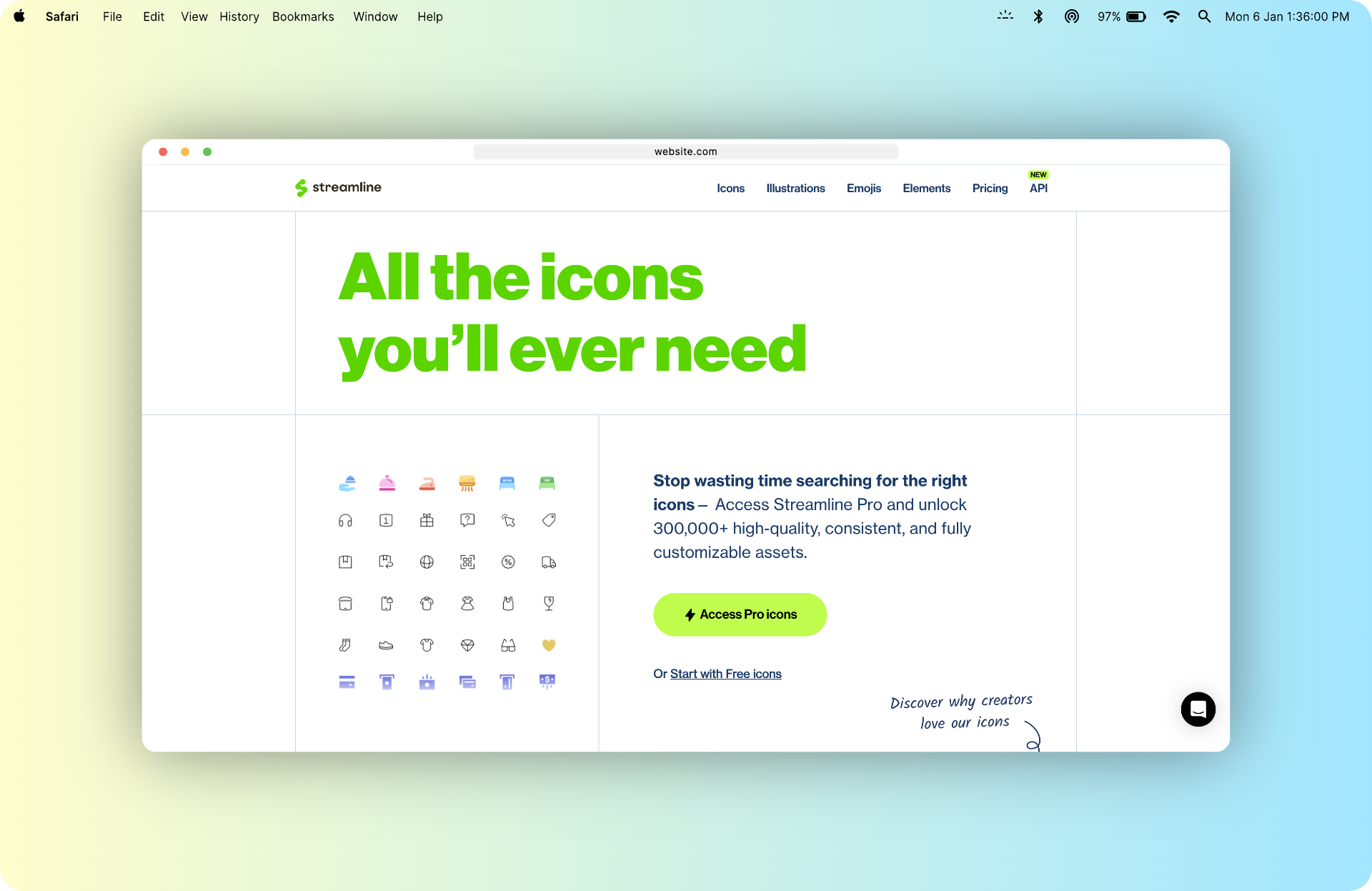
21 local wallpapersAbstract macOS-inspired color flows and Windows-inspired scenes, packaged locally alongside gradients and patterns.

You're Stuck In This Loop

Sound familiar?

Brain Goes Blank

When you need a screenshot fast for presentations or social media, your brain just stops working.

Bookmark Folder Trap

You bookmark tool websites but forget them next week. Even your notes app doesn't help.

30+ Minutes Wasted

Raw screenshots look unprofessional. Photoshop takes forever. Paid tools are expensive and overfeature.

Tool Name Amnesia

You finally find a good tool. Next week? Can't remember its name. Start all over again.

Just Right-Click

Screenshot Framer works exactly how you need it to work.

1

Right-Click

Right-click any website and drag to select the area you want.

2

Customize

Pick a frame, swap backgrounds, set the URL — all in one tab.

3

Share

Copy to clipboard, export PNG, JPG, WebP, PDF or SVG up to 8K — or share to 13 platforms instantly.

Every feature, in one extension

Capture, frame, customize, annotate, export, share — without ever leaving Chrome.

01 · Capture

Get the screenshot in any way you think

Right-click, drop, paste, upload, or quote text — five entry points for the same destination.

Right-click area capture

Drag-to-select any region on any website. Pixel-precise crop with an instant editor tab.

Capture visible tab

One click preserves the complete visible browser viewport—no selection rectangle and no destructive center crop.

Quote-text framer New

Highlight text, right-click, and turn the selection into a typography-styled quote card with the source URL.

Paste, drop, or upload

Paste from clipboard, drag-and-drop a file, upload from disk, or paste an image URL — all welcome.

02 · Frame

Browser polish and social-ready layouts

Every option is a visual preview card: frameless, macOS light and dark, or one of six original social formats.

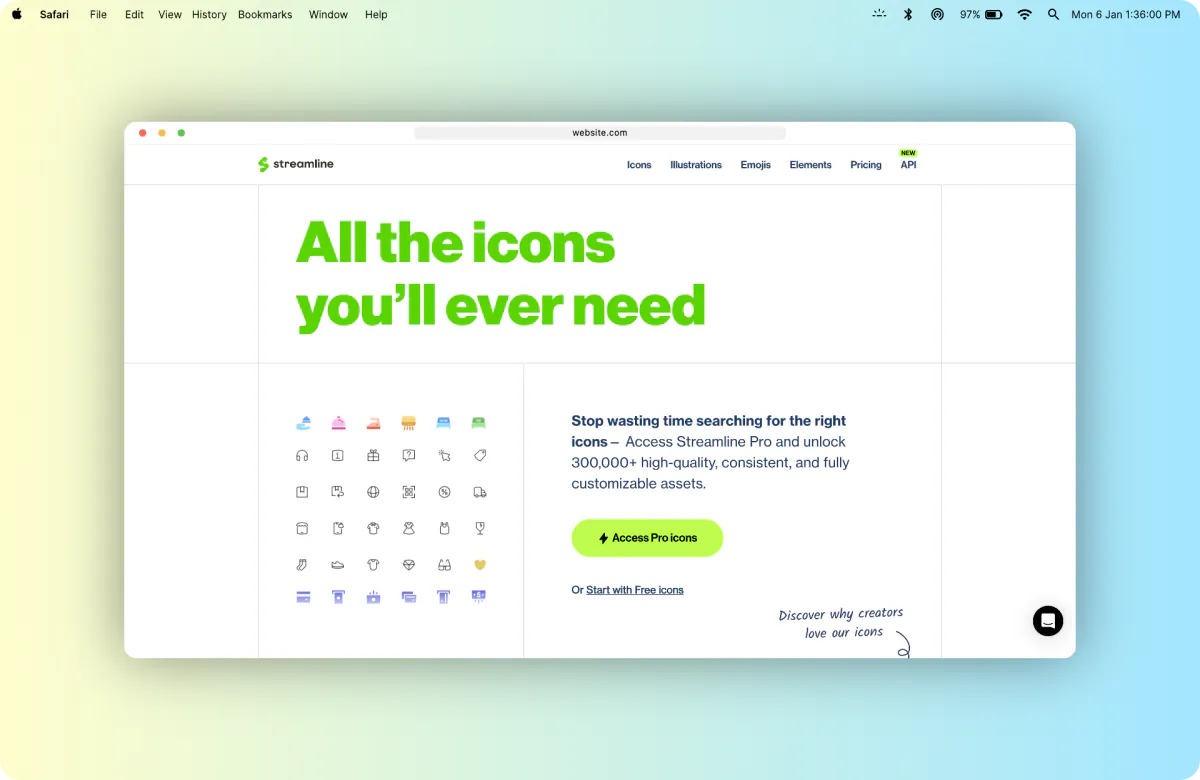
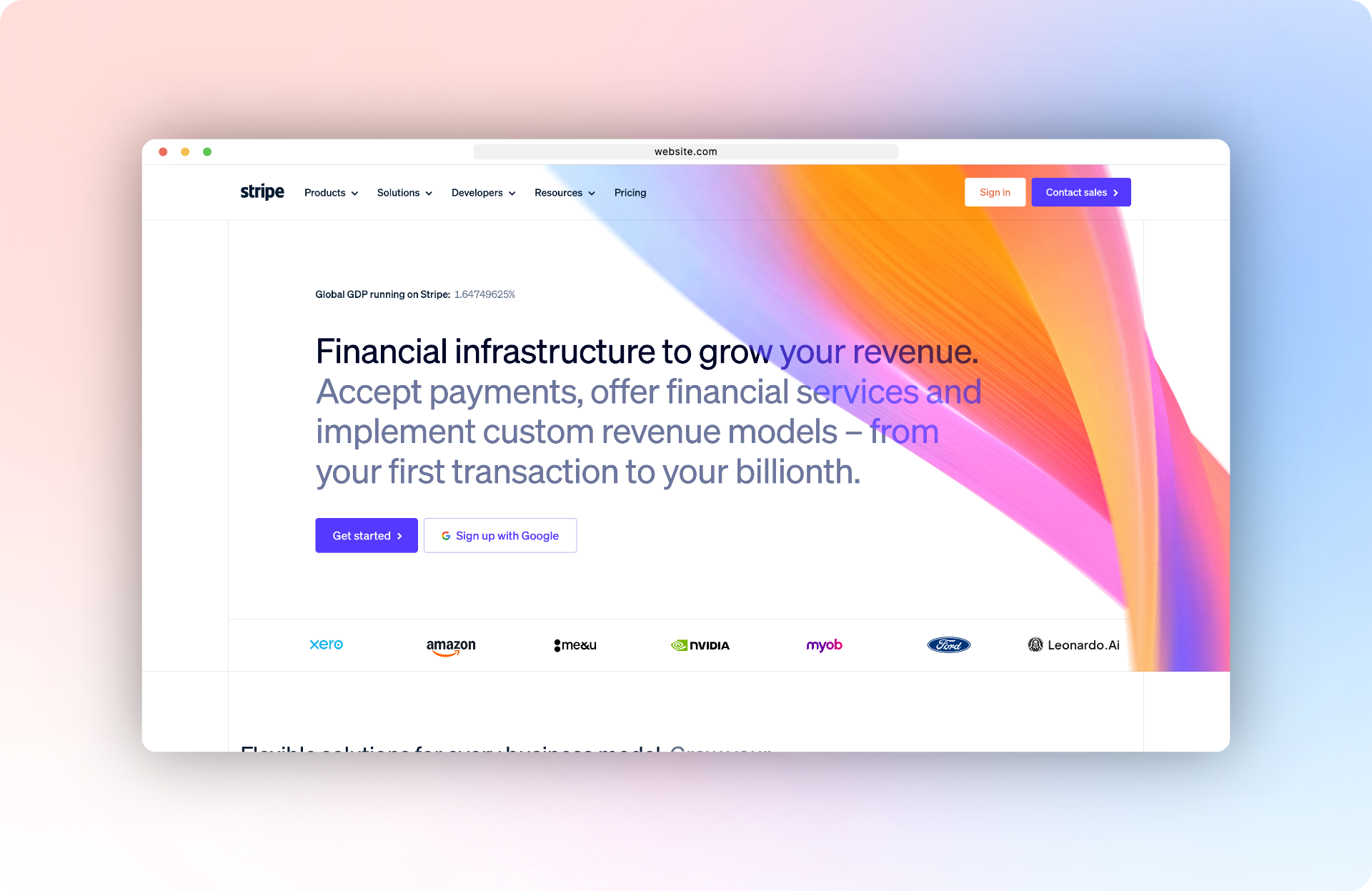
macOS light + dark

Realistic browser chrome with traffic lights and an editable address bar, available in light and dark variants.

Six original social frames

Photo Feed, Micro Post, Professional Update, Story, Short Video and Carousel—familiar formats without platform branding or copied assets.

Preview before you choose

Every frame is shown as a selectable preview card with its suggested 4:3, 1:1 or 9:16 ratio.

Editable post details

Set the name, handle, caption, professional role and carousel count. Add the MacBook menu bar or a custom browser URL when needed.

03 · Customize

Tune every pixel without leaving the tab

Aspect ratios, direct canvas-edge resizing, content sizing, gradients, patterns, wallpapers and rulers—inside one tabbed control card.

Aspect-ratio presets

Auto, 4:3, 3:2, 16:9, 1:1 and MacBook (3024×1964) — plus a free-form custom input that accepts 16:9 or 1280x720.

Content size + canvas edges

Scale content from 5%–100%, then drag any outer canvas edge independently. The background changes while the screenshot keeps its rendered size.

Backgrounds, every flavor

Curated gradients, 13 pattern fills, an Auto palette sampled from your screenshot, 21 local macOS- and Windows-inspired wallpapers, plus your own image or URL.

Edge rulers

Word-style horizontal and vertical rulers across the canvas — ticks every 10/50/100 px, labels at major marks. Toggleable from the panel.

04 · Annotate

Mark it up, redact what shouldn't ship, sign your work

A full ten-tool annotation toolbar, draw-to-redact for hiding sensitive info, a color picker, and a custom watermark.

10-tool annotation toolbar

Rectangle, diamond, ellipse, arrow, line, pen/freehand, text, step counter, insert image, eraser — plus a color chip and Clear All. Keyboard-driven.

Draw-to-redact

Drag anywhere on the canvas to draw blur or solid blocks over sensitive info — emails, API keys, account numbers, faces. Click a block to remove it.

Color picker tool

Click anywhere on the canvas to extract a color. Copies as HEX, RGB, HSL or OKLCH from a floating chip.

Custom watermark

Your text, opacity, four corner placements (TL/TR/BL/BR). Persists across exports so your work stays credited.

05 · Export

Ship the format your destination wants

PNG, JPG, WebP, PDF, SVG — plus Print. Quality presets from 1× to 8K, or a custom width. Separate JPG/WebP quality slider.

PNG · JPG · WebP

Pick the format your destination wants. PNG lossless for fidelity, JPG for small files, WebP for the modern web.

PDF · SVG · Print

Single-page PDF with embedded JPEG via DCTDecode (zero external dependency). SVG vector container with embedded PNG. ⌘P print mode.

1× → 8K + custom width

1× display, 2× Retina, 4K (3840 px), 8K (7680 px), or any width you type (100–16000 px). Same options for Copy and Download.

Quality slider

Independent JPG / WebP quality slider from 50% to 100%. PNG always ships lossless at quality 1.0.

06 · Share

One click into the platform you're posting on

Image copied to clipboard, compose flow opened — thirteen destinations covered, from X to Discord to Email.

Copy to clipboard

One click → PNG / JPG / WebP on your clipboard. Falls back to PNG if the browser refuses the chosen MIME.

X · LinkedIn · Reddit · Facebook

Compose flow opens with the image already on your clipboard, ready to paste into the post.

Threads · Bluesky · Telegram · WhatsApp · Instagram

Native compose URLs for the platforms that matter, no extra apps or middlemen.

Slack · MS Teams · Discord · Email

Work and conversation tools too — share into a channel, a DM, or fire off a mailto draft.

07 · Privacy

Local-first, by design

No accounts or screenshot uploads. Your captures never leave your device.

Runs 100% locally

Capture, framing and export all happen in your browser. Optional anonymous usage metrics are off by default and never include screenshot content or visited URLs.

No account required

No sign-up, no credit card, no email gate. Install and use immediately.

Minimal permissions

Only what's needed to capture the active tab, add the menu, and write your image to the clipboard.

Free forever

No paywalls, no "pro" upsell, no usage caps. The whole feature set, free.

What's New

The editor keeps getting more direct and more share-ready. See the full release notes.

v1.5.0

Social frames & direct canvas control

  • Nine-option visual frame gallery with six social layouts
  • Complete visible-viewport capture without center cropping
  • 21 packaged wallpapers and a full-height inspector
  • Direct four-edge outer-canvas resizing
v1.4.0

Beautiful by default

  • 31 curated macOS- and Windows-inspired gradients
  • Ratio-locked area capture shortcuts
  • Tabbed Background, Frame, Annotate and Style controls
  • Share-ready canvas defaults and layered shadows
v1.3.0

Discoverability & onboarding

  • One-click toolbar capture menu
  • First-run welcome and pinning walkthrough
  • Clearer errors for restricted pages
  • Optional analytics, off by default

What People Are Saying

This actually looks pretty clean for something automated. Might actually save this for later.
Practical-General320
r/Design
Love it, I've paid for Photoshop every month for screenshots like that! Thanks!
Nam Khanh
Chrome Web Store · ★★★★★
I keep a bookmark folder with all the free tools but still forget to check it in a rush. The right-click workflow is exactly what I need instead of going to a separate website every time.
Cool_House_3563
r/Entrepreneur
I usually just throw my screenshots into Figma with some quick device frames, but this actually looks pretty clean for something automated.
Practical-General320
Reddit

Perfect For

Any time you need professional screenshots.

UI/UX Designers

Portfolio pieces, design case studies, client presentations, design system documentation.

Bloggers & Writers

Tutorial screenshots, how-to guides, product reviews, blog illustrations, technical writing.

Business Owners

Product updates, feature releases, milestone announcements, company news, social media posts.

Freelancers & Agencies

Showcase client work, portfolio screenshots, before/after comparisons, case studies, client reports.

Content Creators

Social media content, tutorials, TikTok/Instagram posts, video thumbnails, course materials.

Startup Founders

Product launches, progress updates, investor pitches, landing page marketing, growth announcements.

Developers & Engineers

GitHub README docs, API documentation, code tutorials, debugging screenshots, technical posts.

Educators & Trainers

Online course materials, e-learning content, student guides, instructional documentation, webinar slides.

Marketers & Growth

Social media marketing, email campaigns, landing pages, competitor analysis, market research reports.

YouTubers & Streamers

Video thumbnails, tutorials, streaming overlays, channel banners, community posts, clip highlights.

SaaS & Product Teams

Feature announcements, product documentation, user guides, help center articles, changelog updates.

Sales & Customer Success

Client presentations, sales proposals, customer onboarding, support documentation, training materials.

Journalists & Reporters

News articles, web story illustrations, press releases, research documentation, fact-checking.

Corporate Communications

Internal newsletters, company announcements, policy documentation, training presentations, reports.

Social Media Managers

Instagram posts, Twitter threads, LinkedIn content, TikTok videos, social media calendars.

Product Managers

Feature specifications, product roadmaps, mockups, user feedback documentation, sprint updates.

QA & Testing Teams

Bug reports with screenshots, test case documentation, regression testing, quality assurance reports.

Remote Teams & Agencies

Team collaboration, client reviews, feedback documentation, project tracking, team updates.

Questions?

We've got answers.

Is Screenshot Framer really free?
Yes — 100% free forever. No account, no credit card, no paywall, no hidden fees, no "pro" upsell. The whole feature set ships free.
Does it collect or upload my screenshots?
No. Screenshot capture, framing and export run locally in your browser, and screenshot content is never uploaded. Optional anonymous usage metrics are off by default and never include screenshots, page content or visited URLs.
Which frames does it support?
Nine visual options: frameless, macOS light, macOS dark, Photo Feed, Micro Post, Professional Update, Story, Short Video and Carousel. The six social layouts are original and platform-neutral, and every option appears as a preview card before you select it.
What export formats and resolutions can I get?
PNG (lossless), JPG, WebP, PDF and SVG — plus Print. Quality presets: 1× (display size), 2× Retina, 4K (3840 px wide), 8K (7680 px wide), or a custom width (100–16000 px). A separate slider tunes JPG / WebP quality from 50% to 100%. PDFs are single-page with an embedded JPEG via DCTDecode — no external dependency.
Can it hide sensitive information from a screenshot?
Yes. The redact tool lets you drag anywhere on the canvas to draw blur or solid blocks over any sensitive info — emails, API keys, account numbers, faces, anything you don't want shipping with your screenshot. Click a block to remove it.
Which social platforms does the share button cover?
Thirteen: X (Twitter), LinkedIn, Reddit, Facebook, Threads, Bluesky, Telegram, WhatsApp, Instagram, Slack, Microsoft Teams, Discord and Email. The image is copied to your clipboard and the platform's compose flow opens automatically — paste, post, done.
Can I screenshot just highlighted text?
Yes. Highlight any text on the page, right-click, and choose "Create Framer from selected text" — your selection becomes a typography-styled quote card with the source URL.
Can I make social media graphics or a product introduction post?
Yes. Start with Photo Feed, Micro Post, Professional Update, Story, Short Video or Carousel, then edit the display name, handle, caption, role and slide count. Add a product image, wallpaper, gradient or quote card and export up to 8K for a crisp result on any feed.
Can I cite a research paper or study in the quote card?
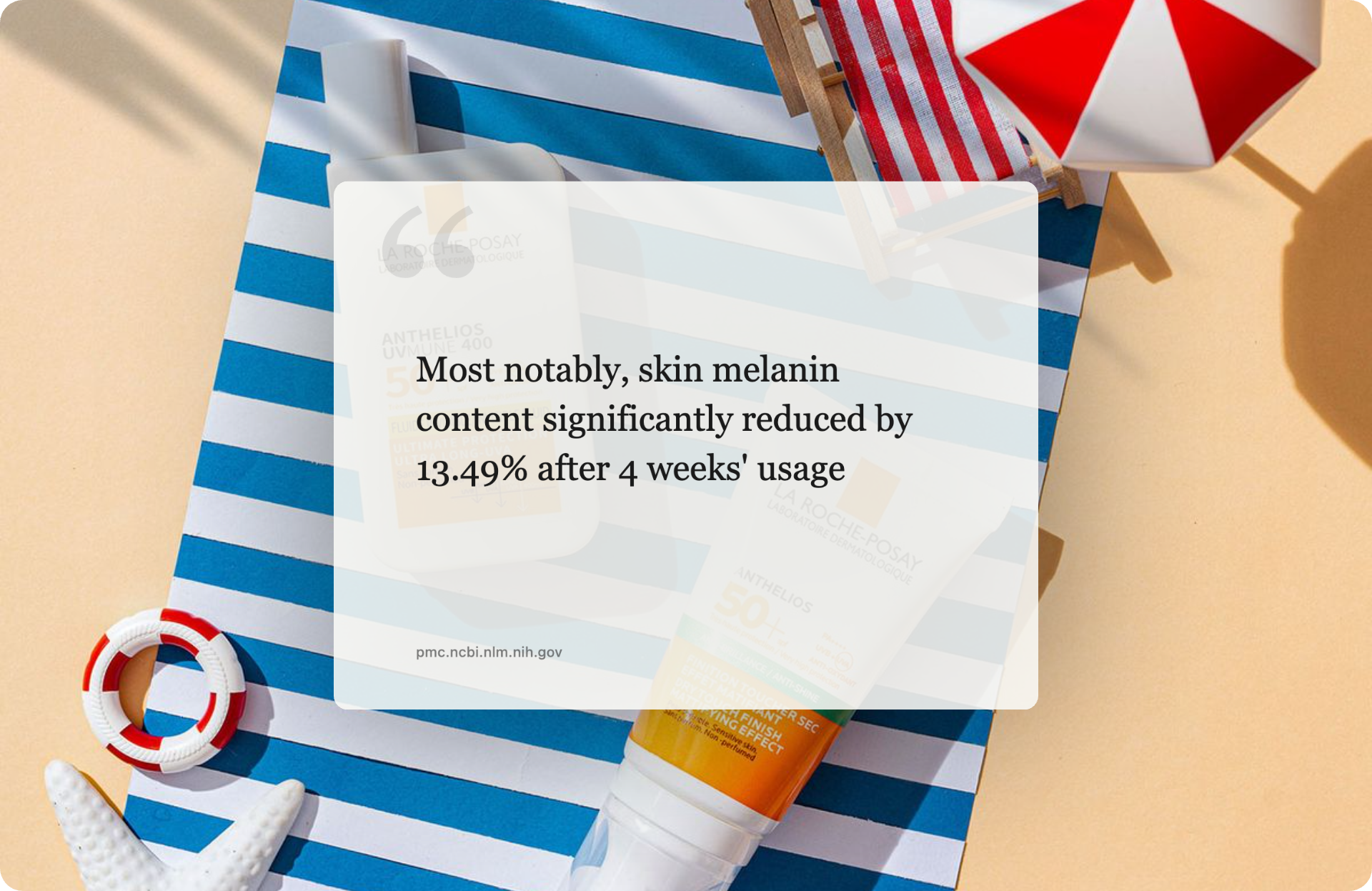
Yes. Highlight a stat or sentence on the study page (PubMed, journal article, press release), right-click → "Create Framer from selected text" — the source URL appears as a caption on the card. Great for clinical findings, product efficacy stats and academic citations on social media.
Does it work on every website?
Any website, any screenshot. No domain block list, no per-site limits. Internal admin tools, paywalled articles, locally-hosted dev environments — all fair game.
Is there a mobile or Firefox version?
Right now: Chrome and Edge (90+). Firefox is on the roadmap — it needs Manifest V3 parity. Safari and a native iOS share extension are being scoped.
How fast is it, really?
Right-click → drag → result tab opens with the framed screenshot in roughly 30 seconds. Quick-paste from clipboard skips the capture entirely.


Stop Wasting Time on Screenshots

Get Screenshot Framer. Free. Forever. Right now.

Download on Chrome Web Store