v1.2 Customize panel · quote-text framer · 10-tool annotation kit · draw-to-redact · 13-platform share Free Chrome Extension · No Account Needed

Your Brain Goes Blank.
Your Screenshots Shouldn't.

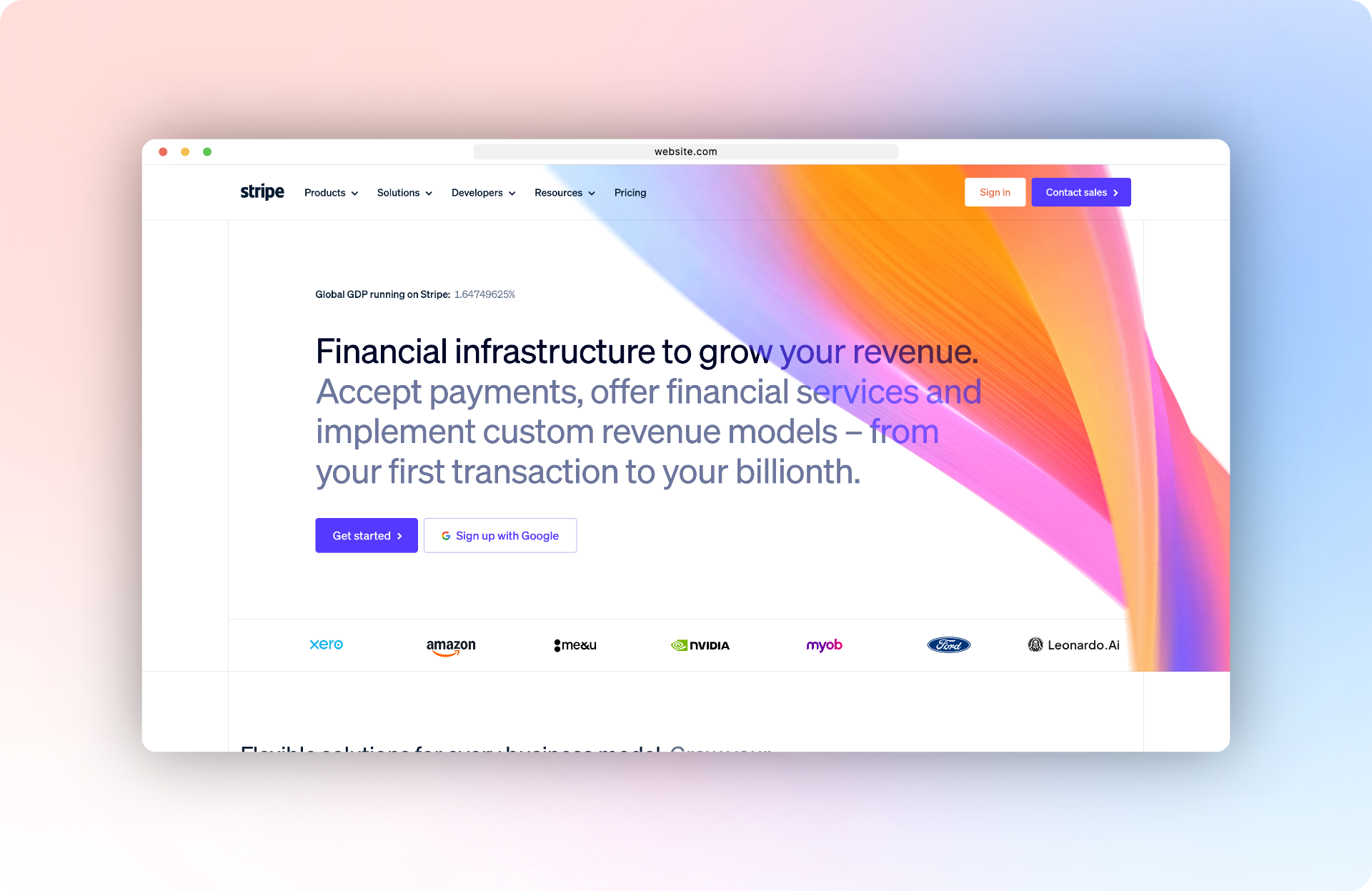
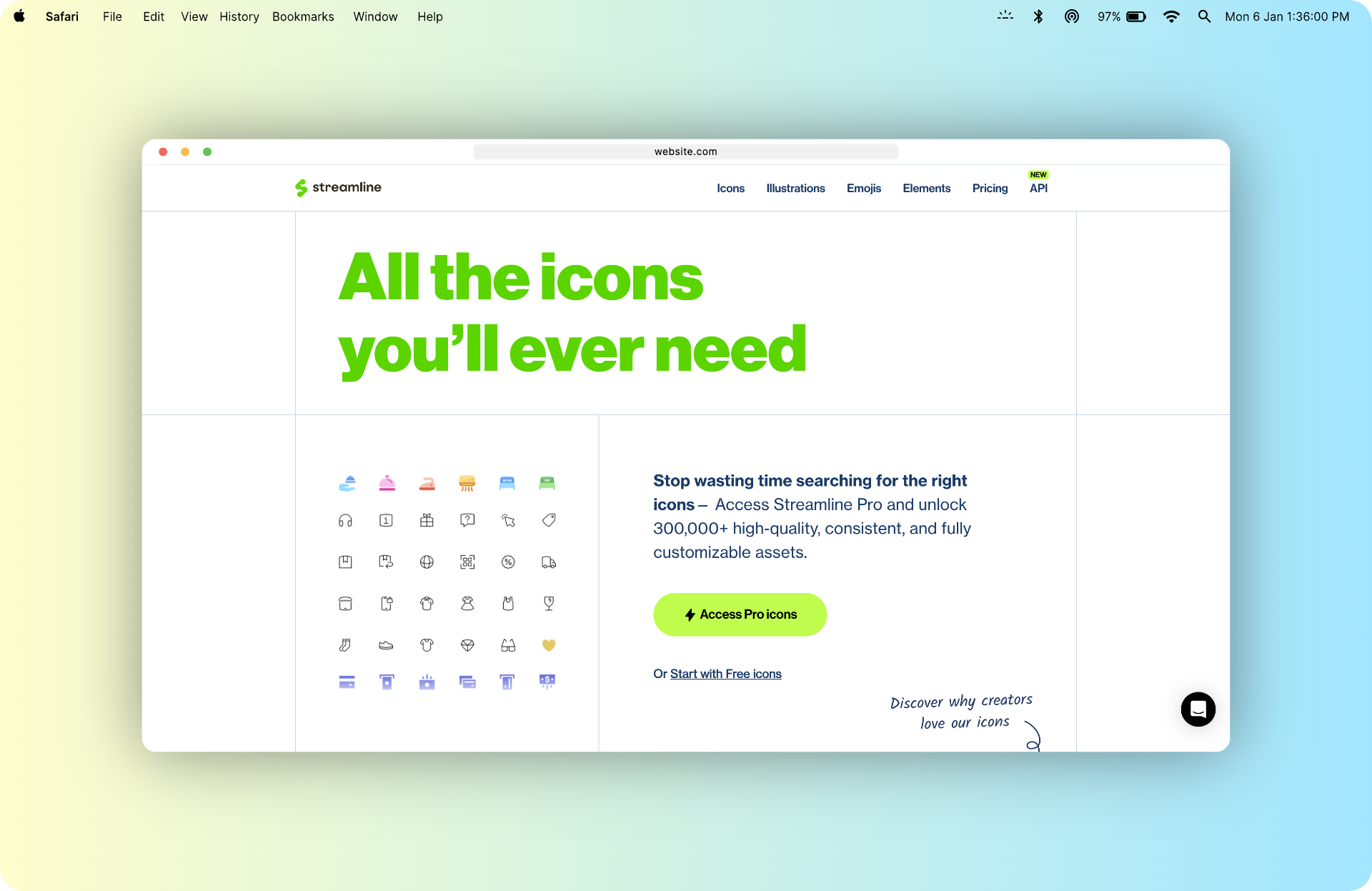
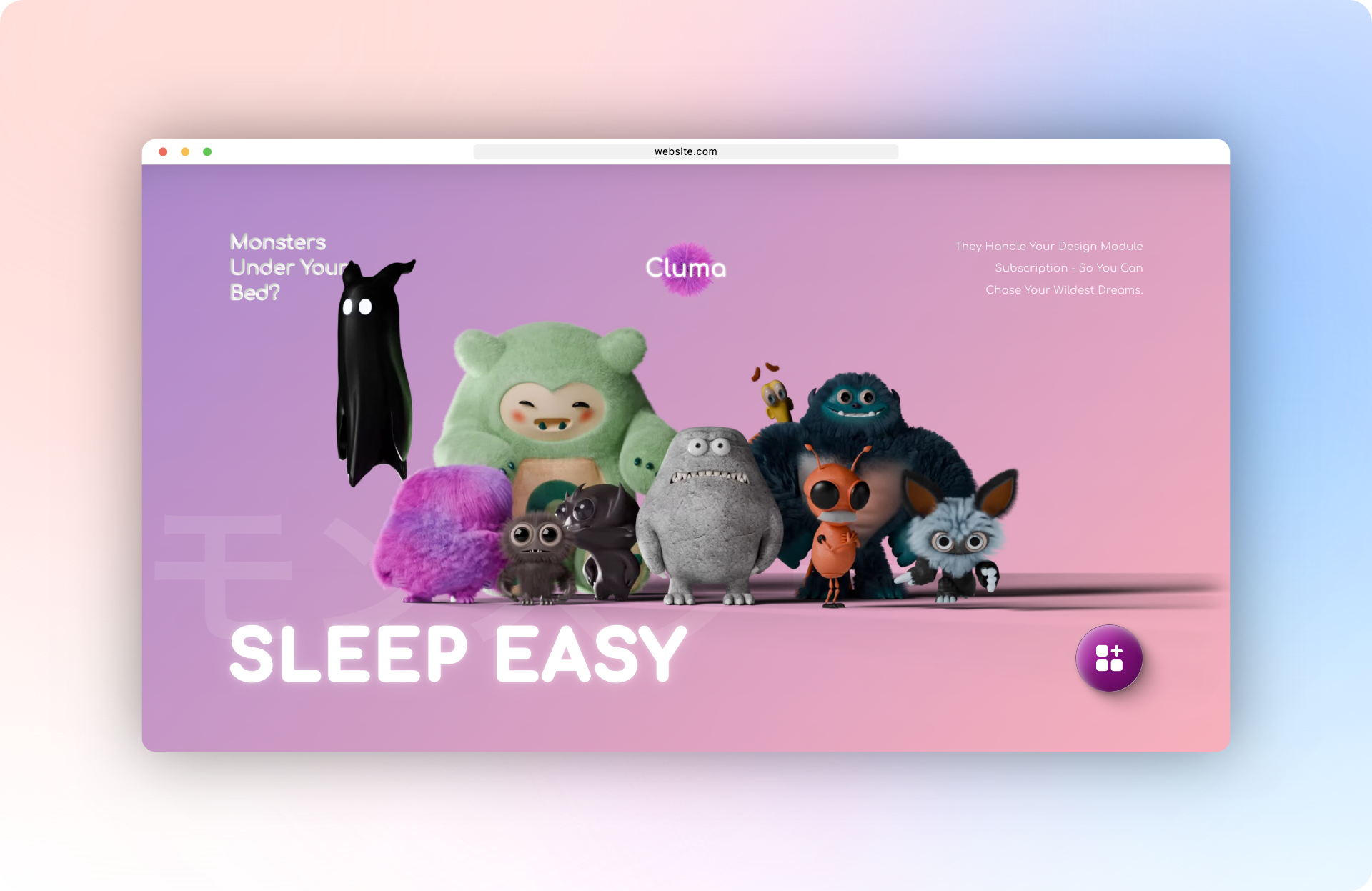
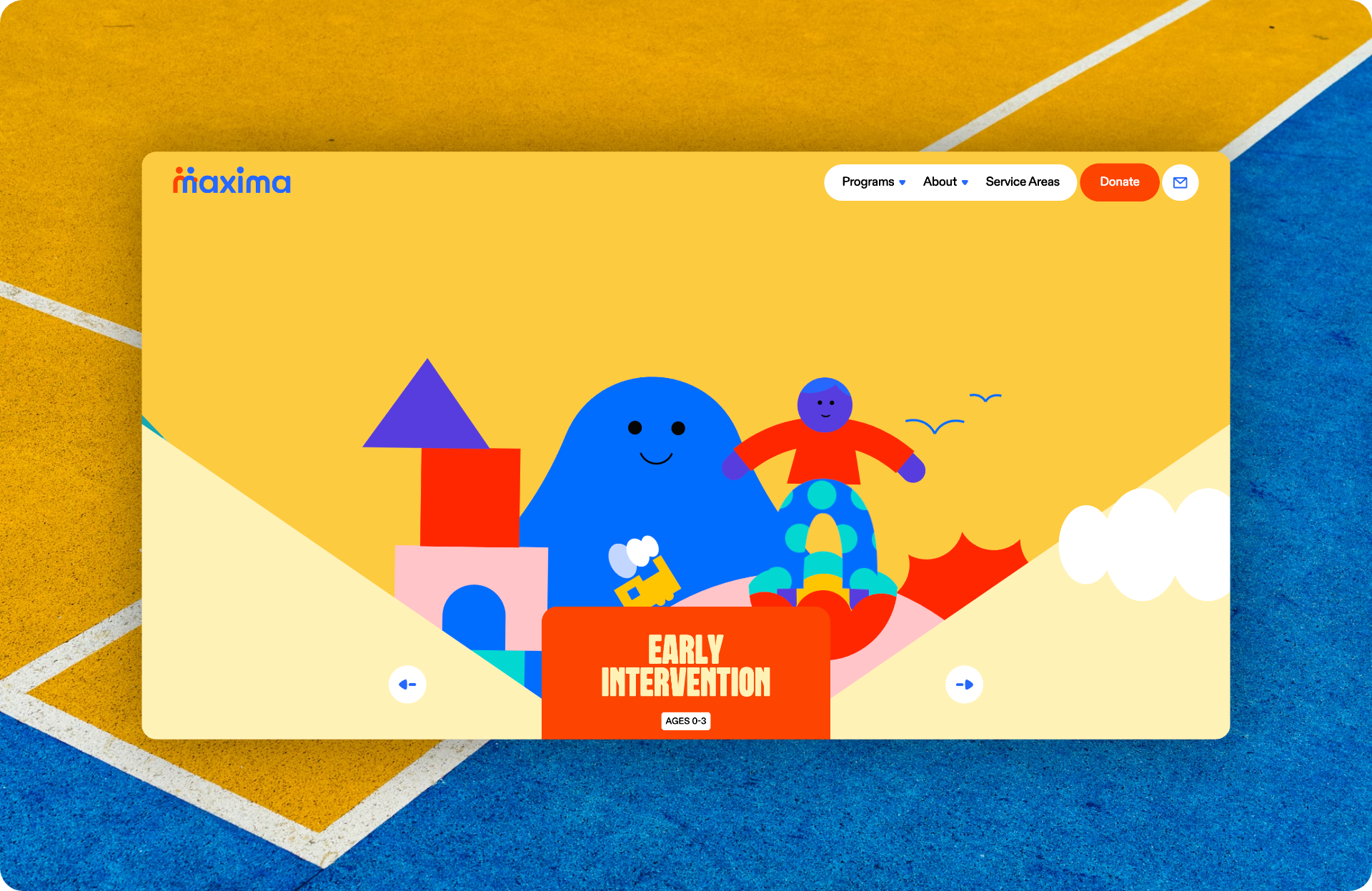
Beautiful browser screenshots in 30 seconds. Right-click any website, drag to select, drop it into a macOS Safari frame, annotate and redact, then copy or export up to 8K — all without leaving your browser.

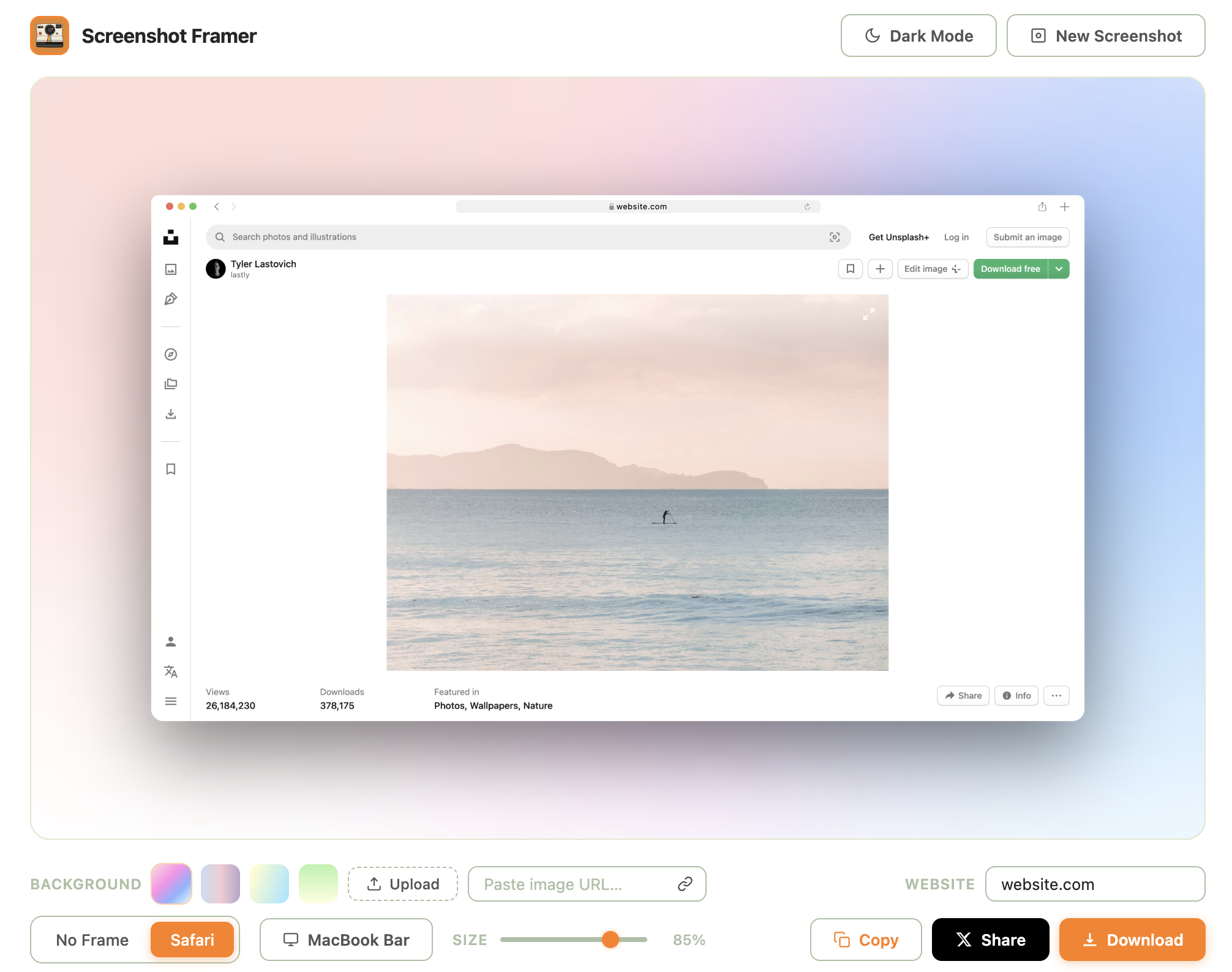
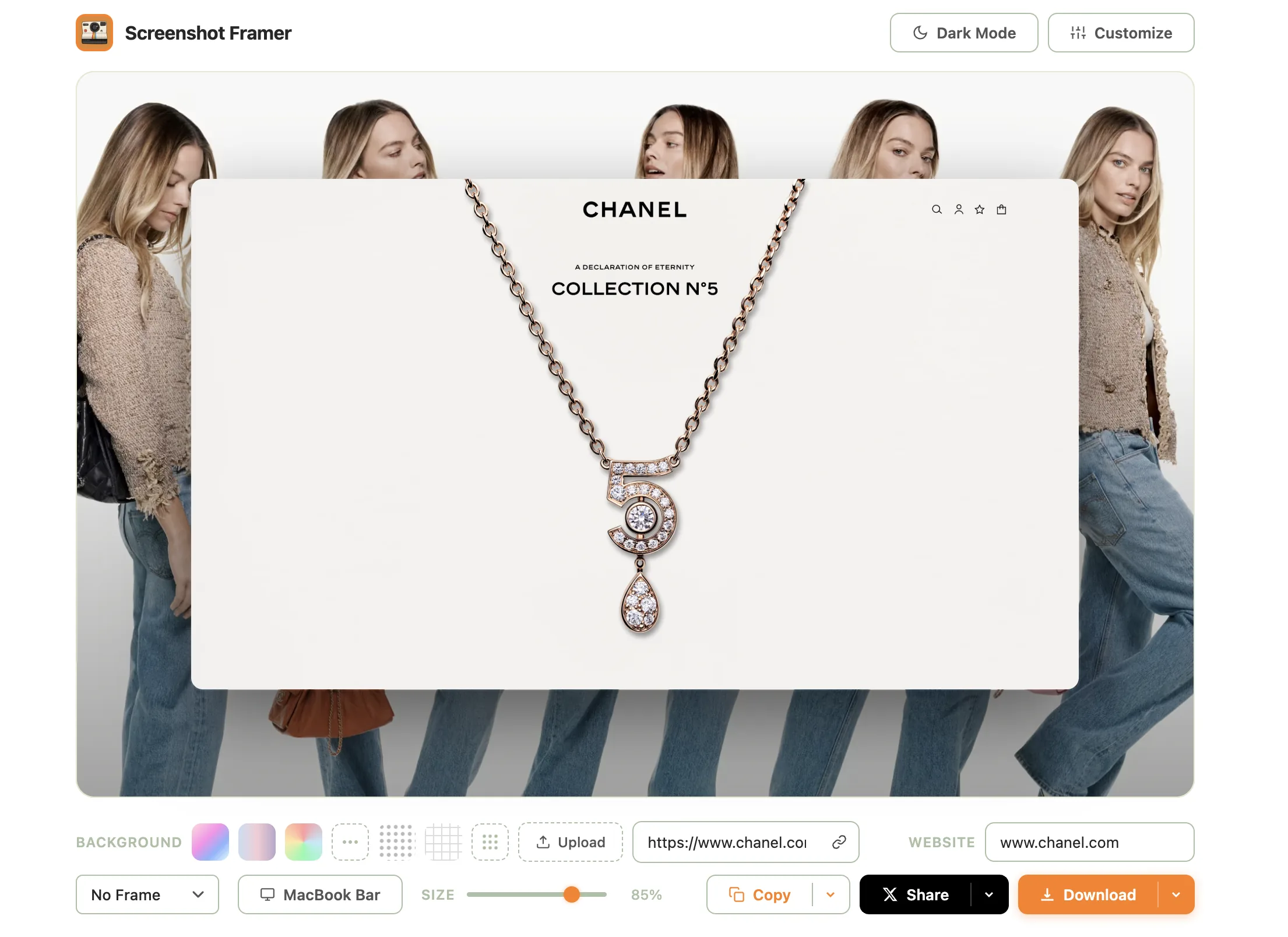
Screenshot Framer result page: a Chanel No. 5 product shot framed in the editor with background, website, and share controls.

Drag the slider. That's the whole product.

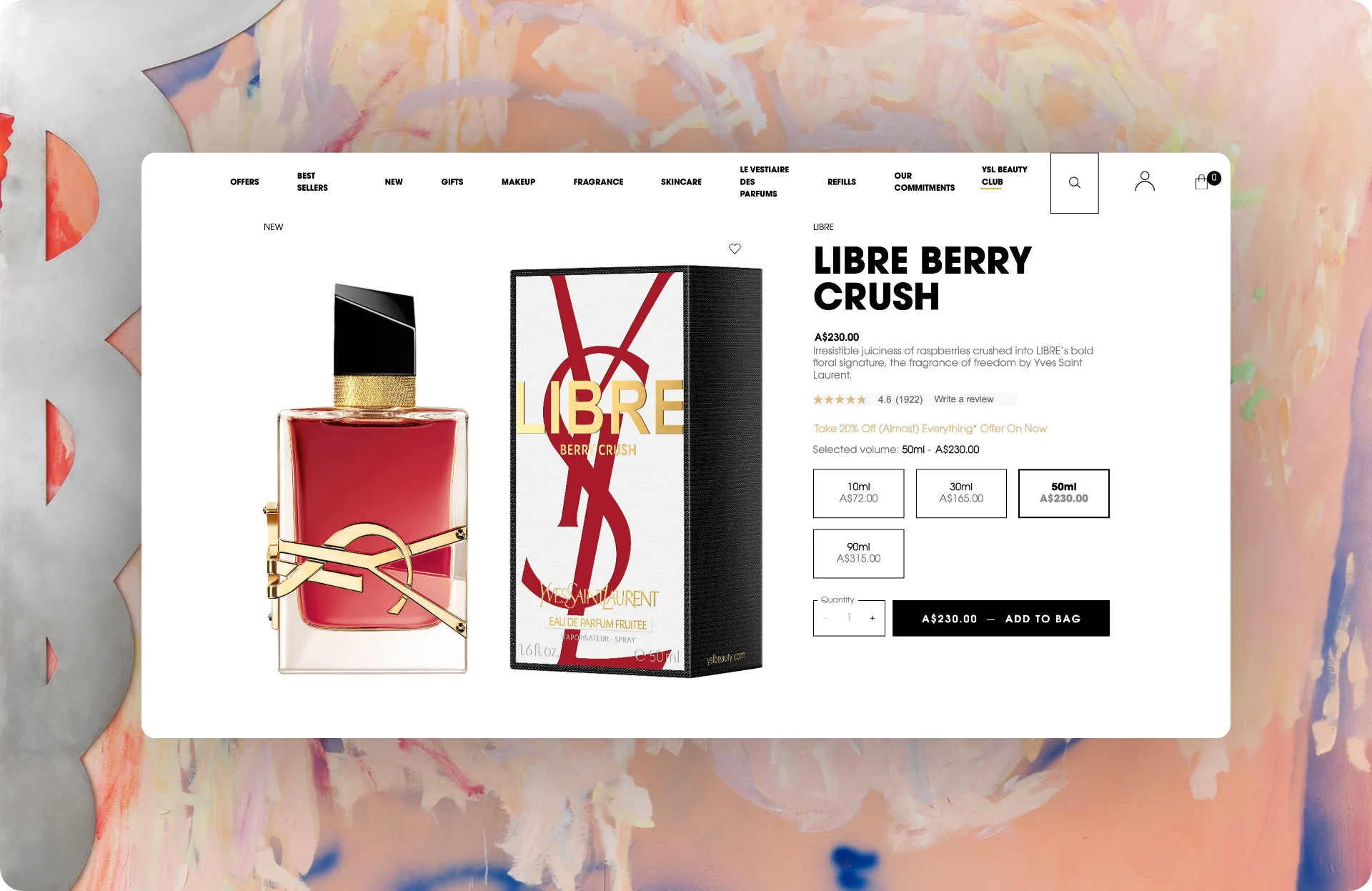
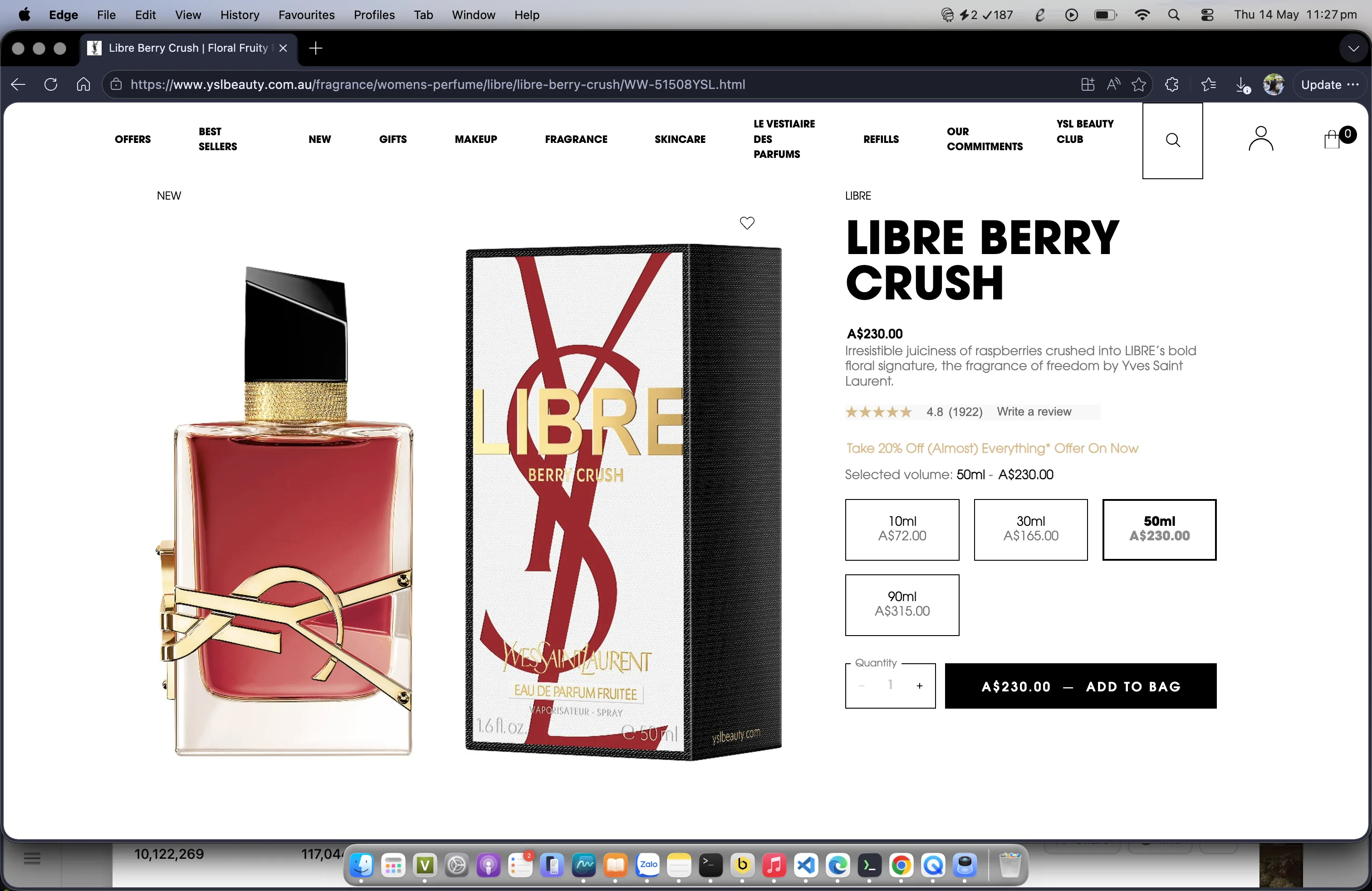
Raw browser screenshot on the left, framed and shareable on the right — one right-click between them.

The same YSL page framed by Screenshot Framer on a peach watercolor background — no browser chrome, no taskbar. Raw browser screenshot of a YSL product page — full Edge browser chrome, taskbar, and desktop visible.
Before
After

Drag · tap · or arrow-key the handle to compare

Two flows, one right-click

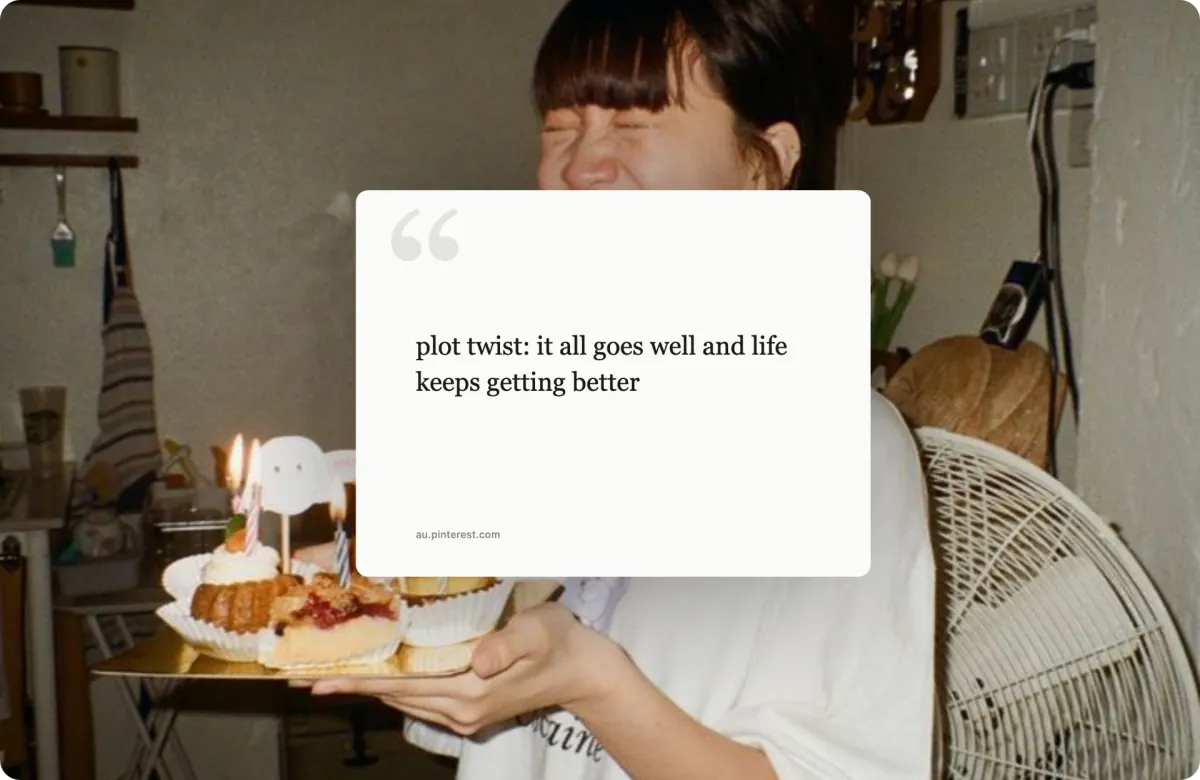
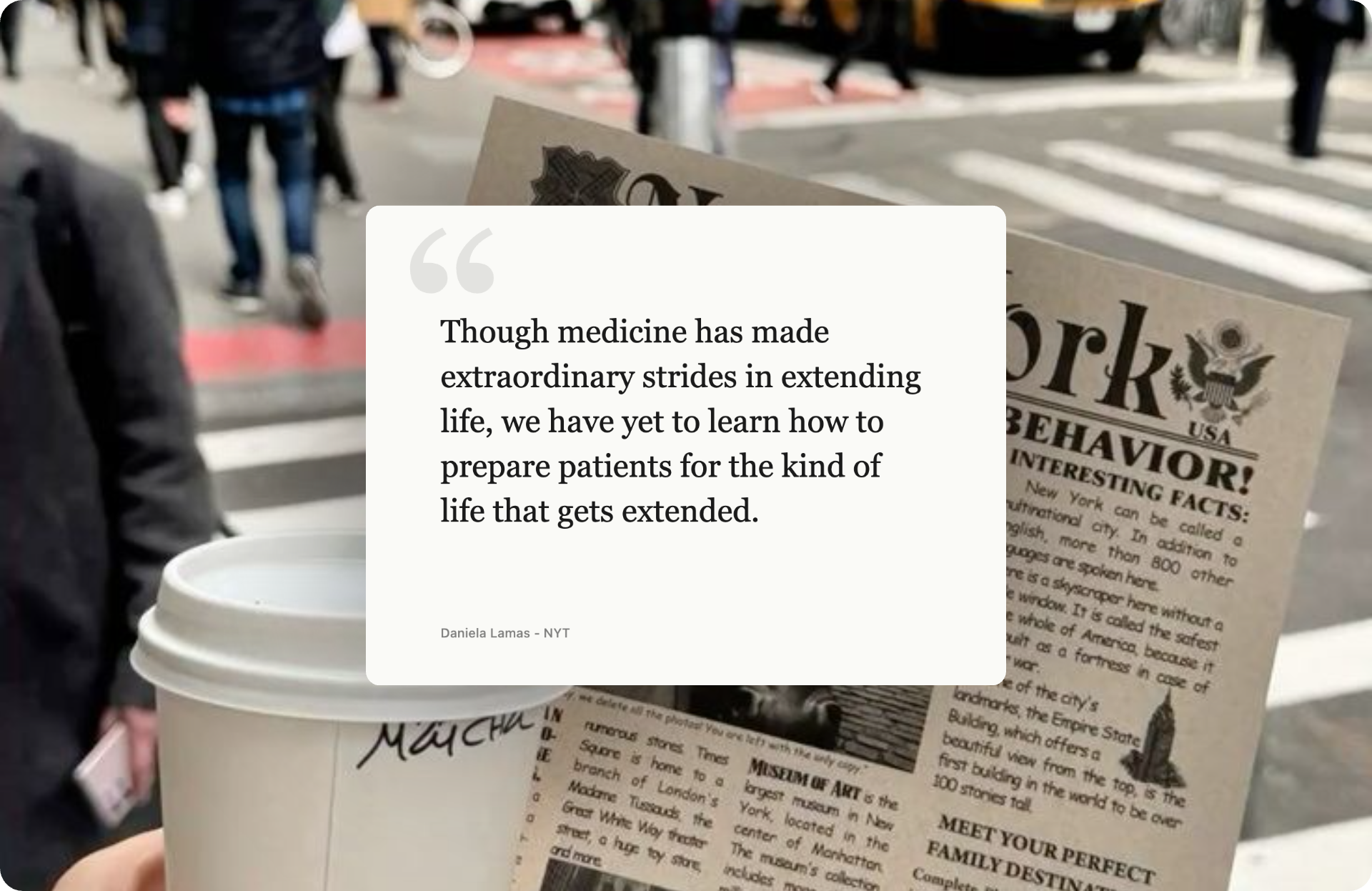
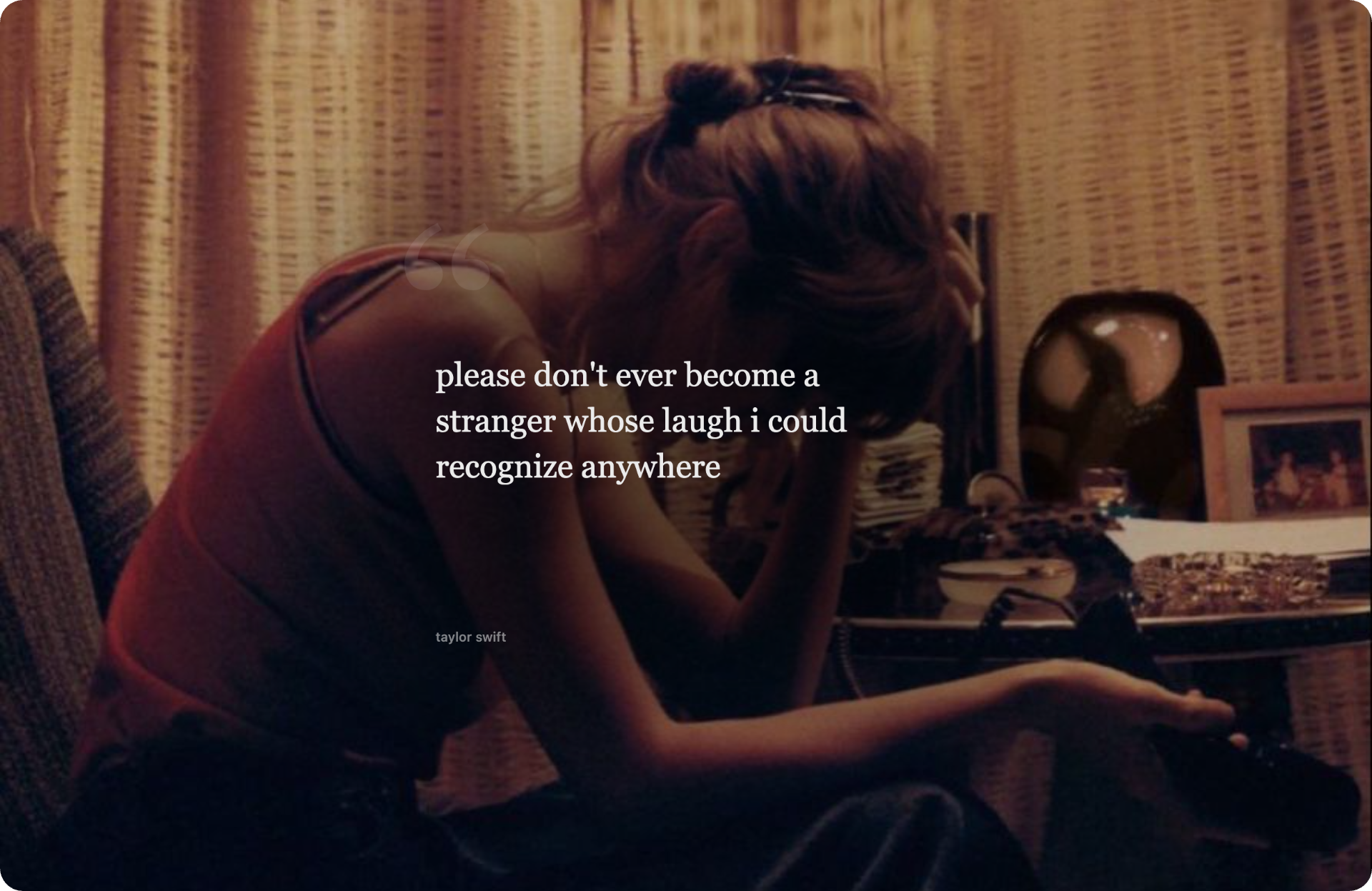
Capture any region of any page, or turn highlighted text into a typography quote card.

Animated demo: right-clicking a webpage, dragging to select an area, and getting back a polished framed screenshot.
01 · Screenshot capture

Right-click → drag → framed result

Selection overlay → editor tab opens with your shot already framed, ready to tweak and ship.

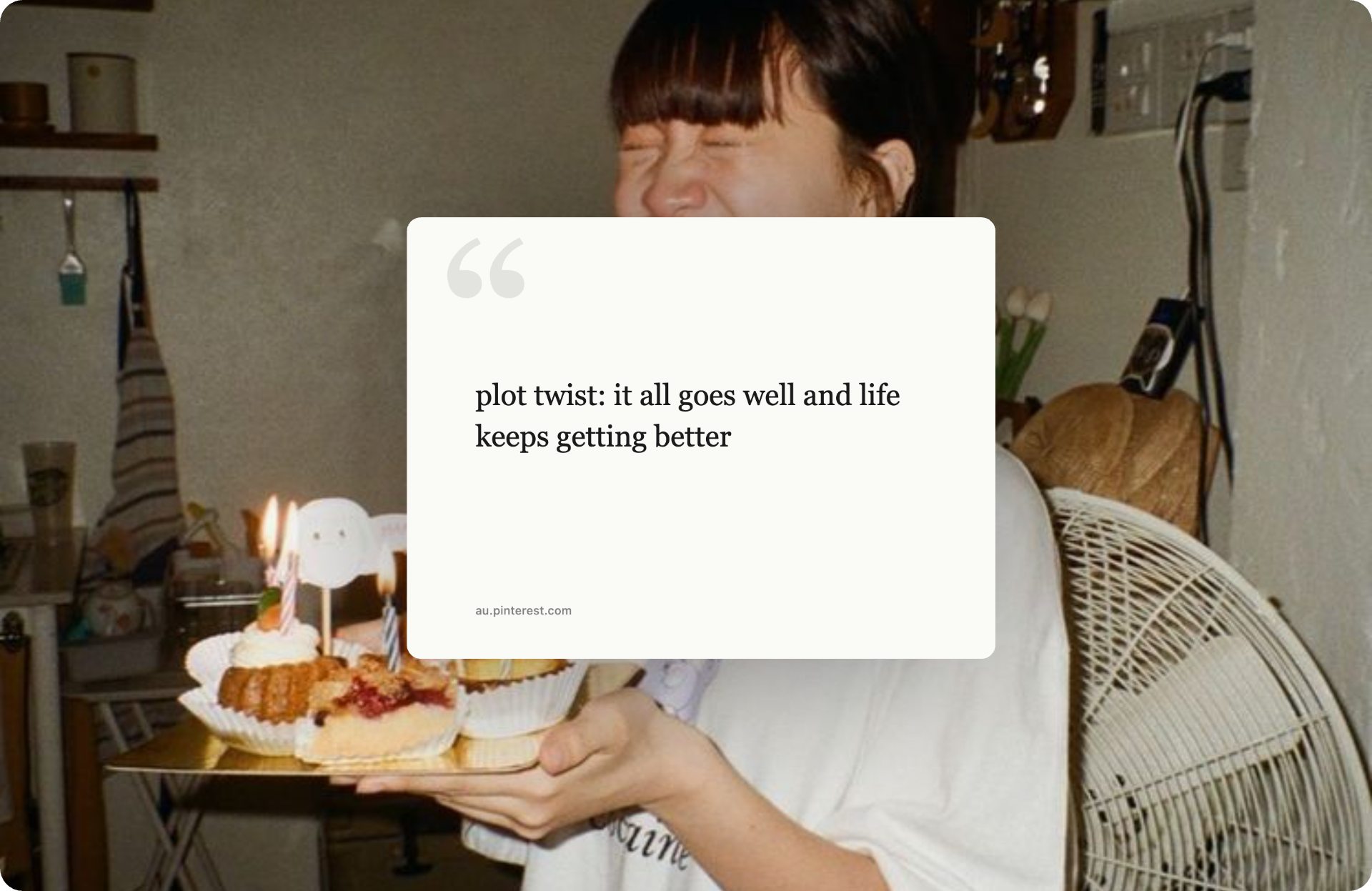
Animated demo: highlighting text on a webpage, right-clicking, and turning the selection into a typography-styled quote card.
02 · Quote framer New

Highlight text → typography quote card

Pick from five fonts, drop in a backdrop, and the source URL is baked into the caption for you.

You're Stuck In This Loop

Sound familiar?

Brain Goes Blank

When you need a screenshot fast for presentations or social media, your brain just stops working.

Bookmark Folder Trap

You bookmark tool websites but forget them next week. Even your notes app doesn't help.

30+ Minutes Wasted

Raw screenshots look unprofessional. Photoshop takes forever. Paid tools are expensive and overfeature.

Tool Name Amnesia

You finally find a good tool. Next week? Can't remember its name. Start all over again.

Just Right-Click

Screenshot Framer works exactly how you need it to work.

1

Right-Click

Right-click any website and drag to select the area you want.

2

Customize

Pick a frame, swap backgrounds, set the URL — all in one tab.

3

Share

Copy to clipboard, download a 2× PNG, or share to Twitter instantly.

Every feature, in one extension

Capture, frame, customize, annotate, export, share — without ever leaving Chrome.

01 · Capture

Get the screenshot in any way you think

Right-click, drop, paste, upload, or quote text — five entry points for the same destination.

Right-click area capture

Drag-to-select any region on any website. Pixel-precise crop with an instant editor tab.

Capture visible tab

One click — the whole viewport, no selection rectangle required.

Quote-text framer New

Highlight text, right-click, and turn the selection into a typography-styled quote card with the source URL.

Paste, drop, or upload

Paste from clipboard, drag-and-drop a file, upload from disk, or paste an image URL — all welcome.

02 · Frame

The macOS Safari frame everyone wants

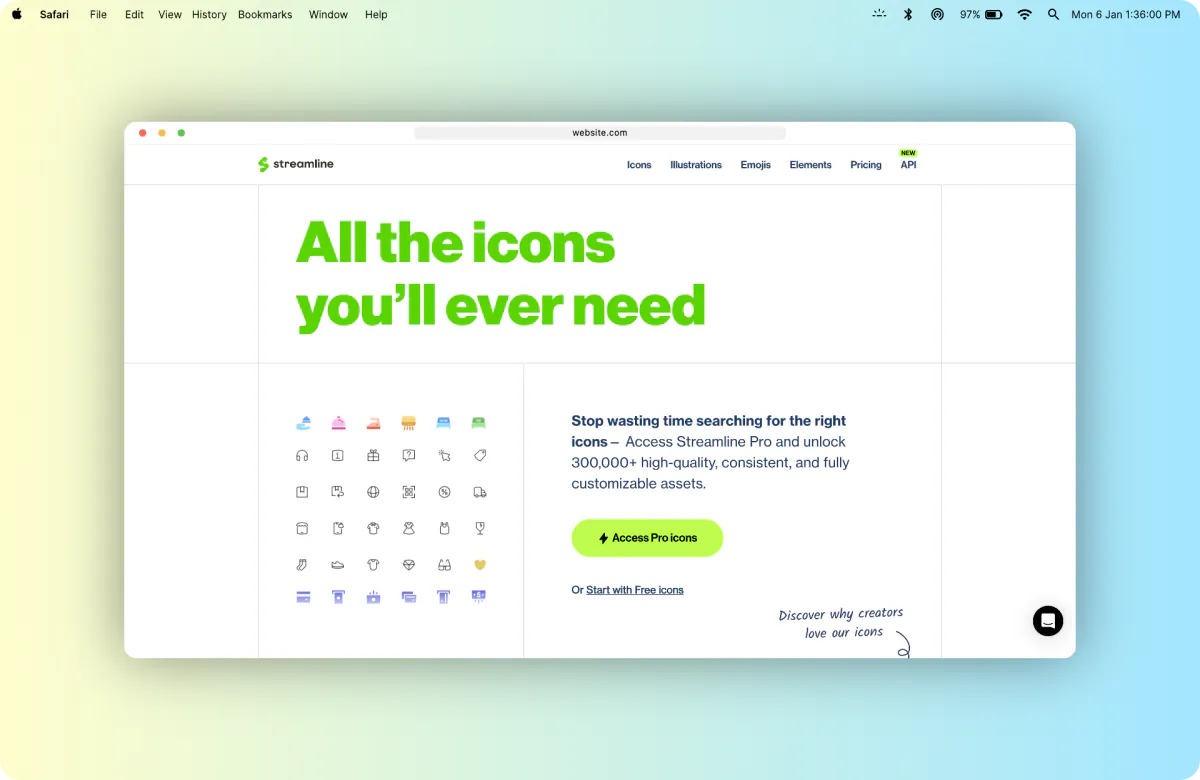
A realistic Safari window with traffic lights, address bar and lock icon — in light and dark — plus a MacBook menu bar overlay for that desktop look.

macOS Safari (light)

Realistic Safari window with traffic lights, address bar and lock icon. The default frame for "this lives on the web" mockups.

macOS Safari (dark)

The same chrome in dark mode for screenshots that pop against light backgrounds and posts.

MacBook menu bar overlay

Pin a macOS menu bar above either Safari frame for that authentic "shipped from a designer's desktop" feel.

Custom address bar

Type any URL — it appears in the Safari address bar with lock icon. For quote-text framers it also doubles as the source caption.

03 · Customize

Tune every pixel without leaving the tab

Aspect-ratio presets, radius / shadow sliders, gradient + pattern + image backgrounds, size slider, edge rulers — all in one floating sidebar.

Aspect-ratio presets

Auto, 4:3, 3:2, 16:9, 1:1 and MacBook (3024×1964) — plus a free-form custom input that accepts 16:9 or 1280x720.

Radius + shadow + size

Live sliders for corner radius (0–24), shadow intensity (0–100) and image size inside the canvas (30%–100%).

Backgrounds, every flavor

14 curated gradients, 13 pattern fills (dots, grid, lines, stripes, diamonds, checkerboard, plus, triangles, chevron…), an Auto swatch sampled from your screenshot, plus your own image or URL.

Edge rulers

Word-style horizontal and vertical rulers across the canvas — ticks every 10/50/100 px, labels at major marks. Toggleable from the panel.

04 · Annotate

Mark it up, redact what shouldn't ship, sign your work

A full ten-tool annotation toolbar, draw-to-redact for hiding sensitive info, a color picker, and a custom watermark.

10-tool annotation toolbar

Rectangle, diamond, ellipse, arrow, line, pen/freehand, text, step counter, insert image, eraser — plus a color chip and Clear All. Keyboard-driven.

Draw-to-redact

Drag anywhere on the canvas to draw blur or solid blocks over sensitive info — emails, API keys, account numbers, faces. Click a block to remove it.

Color picker tool

Click anywhere on the canvas to extract a color. Copies as HEX, RGB, HSL or OKLCH from a floating chip.

Custom watermark

Your text, opacity, four corner placements (TL/TR/BL/BR). Persists across exports so your work stays credited.

05 · Export

Ship the format your destination wants

PNG, JPG, WebP, PDF, SVG — plus Print. Quality presets from 1× to 8K, or a custom width. Separate JPG/WebP quality slider.

PNG · JPG · WebP

Pick the format your destination wants. PNG lossless for fidelity, JPG for small files, WebP for the modern web.

PDF · SVG · Print

Single-page PDF with embedded JPEG via DCTDecode (zero external dependency). SVG vector container with embedded PNG. ⌘P print mode.

1× → 8K + custom width

1× display, 2× Retina, 4K (3840 px), 8K (7680 px), or any width you type (100–16000 px). Same options for Copy and Download.

Quality slider

Independent JPG / WebP quality slider from 50% to 100%. PNG always ships lossless at quality 1.0.

06 · Share

One click into the platform you're posting on

Image copied to clipboard, compose flow opened — thirteen destinations covered, from X to Discord to Email.

Copy to clipboard

One click → PNG / JPG / WebP on your clipboard. Falls back to PNG if the browser refuses the chosen MIME.

X · LinkedIn · Reddit · Facebook

Compose flow opens with the image already on your clipboard, ready to paste into the post.

Threads · Bluesky · Telegram · WhatsApp · Instagram

Native compose URLs for the platforms that matter, no extra apps or middlemen.

Slack · MS Teams · Discord · Email

Work and conversation tools too — share into a channel, a DM, or fire off a mailto draft.

07 · Privacy

Local-first, by design

No accounts, no servers, no tracking. Your screenshots never leave your device.

Runs 100% locally

Capture, framing and export all happen in your browser. No uploads, no cloud, no telemetry.

No account required

No sign-up, no credit card, no email gate. Install and use immediately.

Minimal permissions

Only what's needed to capture the active tab, add the menu, and write your image to the clipboard.

Free forever

No paywalls, no "pro" upsell, no usage caps. The whole feature set, free.

What's New

Two releases tell the whole story so far. See the full release notes.

v1.2.0

Customize panel & the feature pack

  • New customize panel + macOS Dark frame variant
  • Quote-text framer with 5 fonts + glass slider
  • 10-tool annotation kit + draw-to-redact
  • PDF / SVG / Print export up to 8K; share to 13 platforms
v1.1.2

Initial public release

  • Right-click area & full-tab capture
  • macOS Safari frame + MacBook menu bar overlay
  • Gradient backgrounds, radius & shadow sliders
  • Copy to clipboard & 2× PNG download

What People Are Saying

This actually looks pretty clean for something automated. Might actually save this for later.
Practical-General320
r/Design
Love it, I've paid for Photoshop every month for screenshots like that! Thanks!
Nam Khanh
Chrome Web Store · ★★★★★
The right-click workflow is exactly what I need instead of going to a separate website every time.
Cool_House_3563
r/Entrepreneur
I keep a bookmark folder with all the free tools but still forget to check it when I'm in a rush. This is perfect.
Cool_House_3563
r/Entrepreneur

Perfect For

Any time you need professional screenshots.

UI/UX Designers

Portfolio pieces, design case studies, client presentations, design system documentation.

Bloggers & Writers

Tutorial screenshots, how-to guides, product reviews, blog illustrations, technical writing.

Business Owners

Product updates, feature releases, milestone announcements, company news, social media posts.

Freelancers & Agencies

Showcase client work, portfolio screenshots, before/after comparisons, case studies, client reports.

Content Creators

Social media content, tutorials, TikTok/Instagram posts, video thumbnails, course materials.

Startup Founders

Product launches, progress updates, investor pitches, landing page marketing, growth announcements.

Developers & Engineers

GitHub README docs, API documentation, code tutorials, debugging screenshots, technical posts.

Educators & Trainers

Online course materials, e-learning content, student guides, instructional documentation, webinar slides.

Marketers & Growth

Social media marketing, email campaigns, landing pages, competitor analysis, market research reports.

YouTubers & Streamers

Video thumbnails, tutorials, streaming overlays, channel banners, community posts, clip highlights.

SaaS & Product Teams

Feature announcements, product documentation, user guides, help center articles, changelog updates.

Sales & Customer Success

Client presentations, sales proposals, customer onboarding, support documentation, training materials.

Journalists & Reporters

News articles, web story illustrations, press releases, research documentation, fact-checking.

Corporate Communications

Internal newsletters, company announcements, policy documentation, training presentations, reports.

Social Media Managers

Instagram posts, Twitter threads, LinkedIn content, TikTok videos, social media calendars.

Product Managers

Feature specifications, product roadmaps, mockups, user feedback documentation, sprint updates.

QA & Testing Teams

Bug reports with screenshots, test case documentation, regression testing, quality assurance reports.

Remote Teams & Agencies

Team collaboration, client reviews, feedback documentation, project tracking, team updates.
Questions?

We've got answers.

Is Screenshot Framer really free?
Yes — 100% free forever. No account, no credit card, no paywall, no hidden fees, no "pro" upsell. The whole feature set ships free.
Does it collect or upload my screenshots?
No. Everything runs locally in your browser. Screenshots are never uploaded, never stored on a server, never sent anywhere. There's no analytics, no telemetry, no tracking pixel.
Which browser frames does it support?
macOS Safari, in light and dark variants, plus a frameless mode. A MacBook menu bar overlay can stack on top of either Safari frame for that authentic desktop look.
What export formats and resolutions can I get?
PNG (lossless), JPG, WebP, PDF and SVG — plus Print. Quality presets: 1× (display size), 2× Retina, 4K (3840 px wide), 8K (7680 px wide), or a custom width (100–16000 px). A separate slider tunes JPG / WebP quality from 50% to 100%. PDFs are single-page with an embedded JPEG via DCTDecode — no external dependency.
Can it hide sensitive information from a screenshot?
Yes. The redact tool lets you drag anywhere on the canvas to draw blur or solid blocks over any sensitive info — emails, API keys, account numbers, faces, anything you don't want shipping with your screenshot. Click a block to remove it.
Which social platforms does the share button cover?
Thirteen: X (Twitter), LinkedIn, Reddit, Facebook, Threads, Bluesky, Telegram, WhatsApp, Instagram, Slack, Microsoft Teams, Discord and Email. The image is copied to your clipboard and the platform's compose flow opens automatically — paste, post, done.
Can I screenshot just highlighted text?
Yes. Highlight any text on the page, right-click, and choose "Create Framer from selected text" — your selection becomes a typography-styled quote card with the source URL.
Can I make social media graphics or a product introduction post?
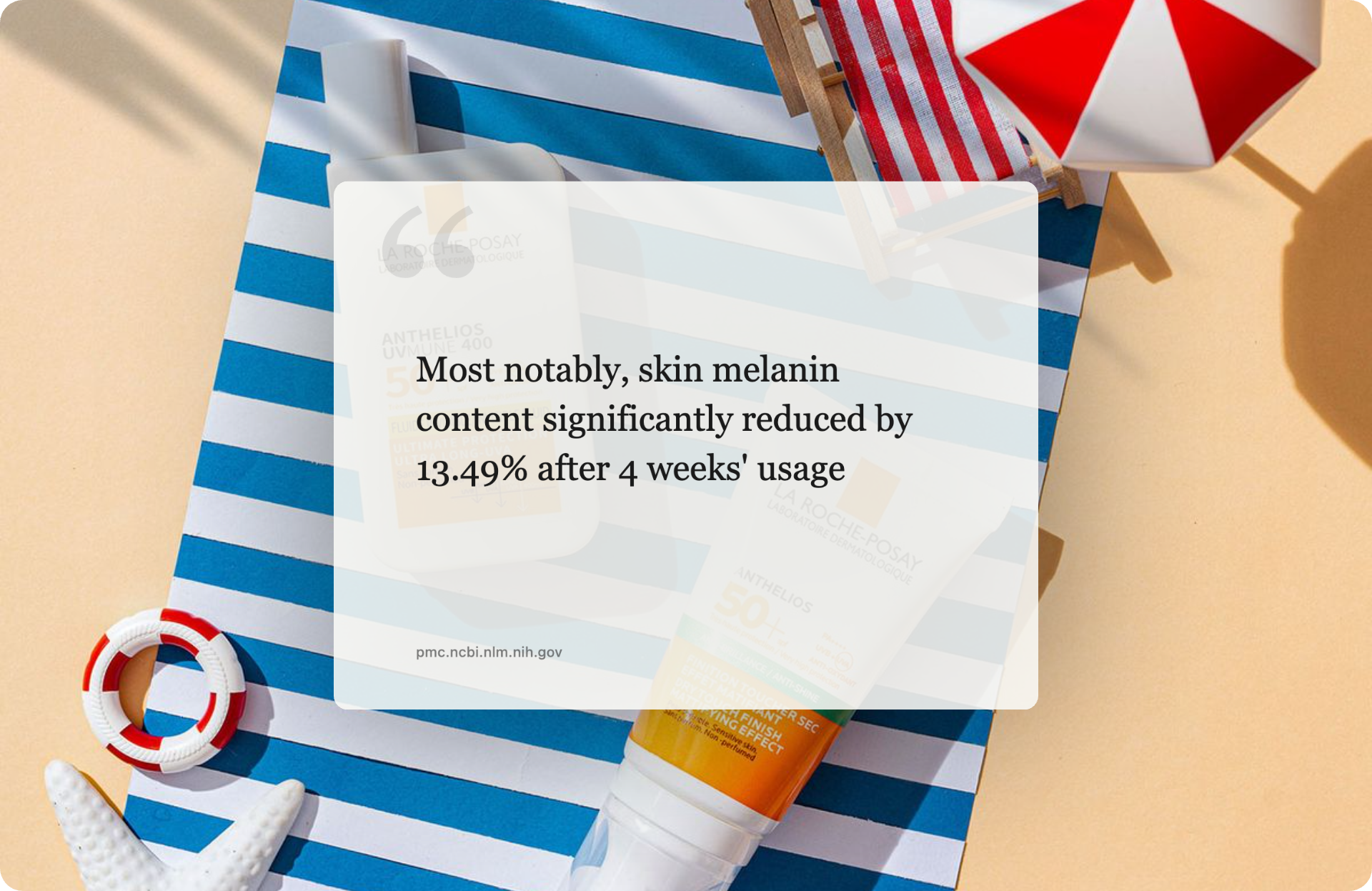
Yes — that's exactly the use case. Drop in your product photo as the background, paste or highlight a review / research quote, and you get a typography-styled card with the source URL baked in. Perfect for Instagram, X, LinkedIn and Threads posts for skincare, beauty, SaaS or B2B launches. Export at up to 8K so it stays crisp on every feed.
Can I cite a research paper or study in the quote card?
Yes. Highlight a stat or sentence on the study page (PubMed, journal article, press release), right-click → "Create Framer from selected text" — the source URL appears as a caption on the card. Great for clinical findings, product efficacy stats and academic citations on social media.
Does it work on every website?
Any website, any screenshot. No domain block list, no per-site limits. Internal admin tools, paywalled articles, locally-hosted dev environments — all fair game.
Is there a mobile or Firefox version?
Right now: Chrome and Edge (90+). Firefox is on the roadmap — it needs Manifest V3 parity. Safari and a native iOS share extension are being scoped.
How fast is it, really?
Right-click → drag → result tab opens with the framed screenshot in roughly 30 seconds. Quick-paste from clipboard skips the capture entirely.

Stop Wasting Time on Screenshots

Get Screenshot Framer. Free. Forever. Right now.

Download on Chrome Web Store